Bacara Plugin User Manual user guide for v2.0.0
The complete user manual for Bacara Plugin. Also available as a PDF download.
Table of Contents
Introduction
"Honour thy error as a hidden intention." (Brian Eno, Oblique Strategies)
Bacara is a MIDI pattern generator. It writes melodic lines: a language model trained on acid, Bach, flamenco, klezmer and a dozen other traditions proposes the notes, and deviation lanes bend, mute, accent and reroute them over time, so the pattern never quite plays the same way twice.
Bacara makes no sound of its own. It sends MIDI notes and control data to your synthesizers: software instruments in your DAW, or hardware at the end of a cable. What you hear is your synth. Bacara only decides what it plays.
There are three sequencers inside, running side by side:
- Chord: the progression the melody rides on. It can also decide which scale the melody is allowed to use.
- Melodic: the note phrase. Two phrases (A and B) per pattern slot, generated or drawn by hand.
- Rhythm: twenty-one drum voices with their own generative lanes.
Sidetrack.In 1981 Roland built a machine to replace bass players. It played too stiffly, sounded nothing like a bass, and was discontinued within a few years, a failure by every measure the company kept. Then the second-hand shops filled up, someone in Chicago turned the resonance too far, and the TB-303 became the most influential failure in the history of music. Bacara is built on what that machine taught: a pattern you did not intend can still be the one you keep.
Key features:
- Melodic phrase generation from twenty training styles, acid through Renaissance, or from a written-down melodic style: ten bass grammars that follow the chords and the kick, and a lead that plays in the gaps the drums leave
- 11 deviation lanes shaping the melodic line: deterministic random curves with thresholds, Euclidean pulses on top
- 32 automation lanes (CC, high-resolution CC, NRPN, Program Change, Aftertouch, Pitchbend)
- A 21-voice rhythm sequencer with per-voice generative trigger, accent, ratchet and humanise lanes
- A chord sequencer with its own generators (algorithmic and trained), deviation lanes and a chord wheel
- 16 DAW-automatable macros
- 38 musical scales, with the option to let the chord progression enforce the scale
- 128 pattern slots per preset (8 banks A-H x 16, A01-H16), switched cleanly on the next pass
- Per-step trig conditions: probability, fill, first/last, ratios
- Clips: every sounding sequencer as a MIDI clip, dragged into your DAW one by one or all at once
- Bond: one Bacara on several DAW tracks, each track playing its own part
- A built-in guided tutorial, so you don't have to read this manual
Formats
Bacara Plugin loads in your DAW as VST3, Audio Units (macOS) or CLAP.
Installation
macOS
Run the .pkg installer. Components install to the standard system locations:
- VST3:
/Library/Audio/Plug-Ins/VST3/Bonboa/ - AU:
/Library/Audio/Plug-Ins/Components/ - CLAP:
/Library/Audio/Plug-Ins/CLAP/Bonboa/ - Presets:
/Library/Audio/Presets/Bonboa/Bacara/ - App:
/Applications/Bacara.app
Bacara is a Universal Binary and runs natively on Apple Silicon and Intel Macs. Requires macOS 12 (Monterey) or later.
Windows
Run the .msi installer. Components are selectable:
- VST3:
C:\Program Files\Common Files\VST3\Bonboa\Bacara\ - CLAP:
C:\Program Files\Common Files\CLAP\Bonboa\Bacara\ - Presets:
C:\ProgramData\Bonboa\Bacara\Presets\ - MIDI definitions:
C:\ProgramData\Bonboa\Bacara\Resources\ - App:
C:\Program Files\Bonboa\Bacara\
Requires Windows 10 or later (64-bit).
After Installation
Rescan plugins in your DAW. Bacara appears as a MIDI effect or MIDI instrument, not an audio effect. Some DAWs list those separately. Load it on a MIDI or instrument track and route its output to a synthesizer.
Trial and Licensing
Bacara generates on your own machine. Nothing about generating a phrase needs the internet, whether you are trialling or licensed.
Trial. An unregistered Bacara runs as a trial: 14 days and 30 generations, whichever runs out first. Registering with your name and e-mail (no serial needed, no payment) extends that to 30 days and 50 generations. Only asking the model counts: playback, editing, deviation re-seeds and algorithmic throws are free. When the trial ends, generating stops; everything else keeps working, so the phrase you have stays yours to play, edit, save and export.
Licensing. When you buy, you get a serial and a licence. Either one registers Bacara, in the same field (menu > Register Bacara..., or the User button in the bottom toolbar):
- The serial is the short code from your order. Type it in with your name and e-mail and Bacara will check it with the server the next time it has a connection.
- The licence is the long
BACARA-LICENSE-...line that came with it. Paste it into the same field, or drop the licence file onto Bacara's window, and Bacara is licensed on the spot: offline, on a plane, behind a firewall. Bacara checks the signature itself; it never asks a server for permission.
Bacara does contact the server in the background when it can, to record which machines a serial is running on and to pass on how much you have generated. If that fails (no connection, a server that is down), nothing stops. It tries again another time.
Getting Started
- Load Bacara on a MIDI or instrument track in your DAW.
- Route its output to a synthesizer, software or hardware. Bacara in Your DAW has the steps per DAW.
- Follow the tutorial. It starts by itself the first time you open Bacara, and you can rerun it any time from the menu (smiley icon > Tutorial). It walks the whole interface, panel by panel. It is the fastest way in.
- Press the dice in the bottom toolbar to generate a phrase.
- Press play in your DAW. You should hear the phrase through your synth.
- Turn things. Macros, deviation lanes, scales. Nothing you do is dangerous, and undo goes 32 levels deep.
One tip before you reach for Slide: slides only glide on a synth that can glide: monophonic, legato mode, some portamento. The melodic chapter explains.
Bacara in Your DAW
Bacara sends MIDI, and every DAW takes a plugin's MIDI its own way. Here are the steps for three of them, from the first note to a band with an instrument per part.
Bitwig Studio
- Load Bacara, CLAP or VST3, on an instrument track.
- Put your instrument after it in the same device chain. Bacara's notes go straight on down the chain.
- Press play in Bitwig.
The demo sound. Bitwig gives Bacara an audio output, so the demo switch is on the bar. With no instrument after Bacara yet, the demo is what you hear. Switch it off when your instrument takes over.
More than one part. The instrument after Bacara hears every channel Bacara sends. To give the melodic line, the chords and the rhythm an instrument each, put a Bacara on each instrument track and bond them: see Bond.
Transport. With the CLAP version, Play in the Bacara app starts Bitwig. See The Bacara App.
Ableton Live
Live does not hand a plugin's MIDI to the next device on the same track. Bacara and its instrument sit on two tracks, and the second one listens to the first.
- Load Bacara (VST3) on a MIDI track.
- Make a second MIDI track and load your instrument on it.
- On the second track, set MIDI From to Bacara's track, and in the chooser below it pick Bacara.
- Set the second track's Monitor to In.
- Press play in Live.
The demo sound. Live gives Bacara an audio output, so the demo switch is on the bar, and the demo plays on Bacara's own track.
More than one part. Use one Bacara per part, each with its own instrument track as above, and bond them. A trio takes six tracks. Bond explains why Live needs it.
Transport. Start Live yourself, and the Bacara app follows. See The Bacara App.
Logic Pro
- Make a software instrument track and load your instrument.
- On its channel strip, click the empty space between the EQ and the instrument slot, and pick Bacara from the MIDI effects menu, under Audio Units.
- Press play in Logic.
Bacara's notes go to the instrument on the same channel strip. A new, empty Logic project already has a software instrument track with an electric piano on it, so Bacara in its MIDI effect slot plays straight away.
The demo sound. In Logic, Bacara is an Audio Units MIDI effect with no audio output of its own, so the bar has no demo switch.
More than one part. On its own, Bacara plays all three sequencers into the one instrument. Put a Bacara in the MIDI effect slot of each instrument track and bond them. Bond explains why Logic needs it.
Transport. Start Logic yourself, and the Bacara app follows. See The Bacara App.
Interface Overview
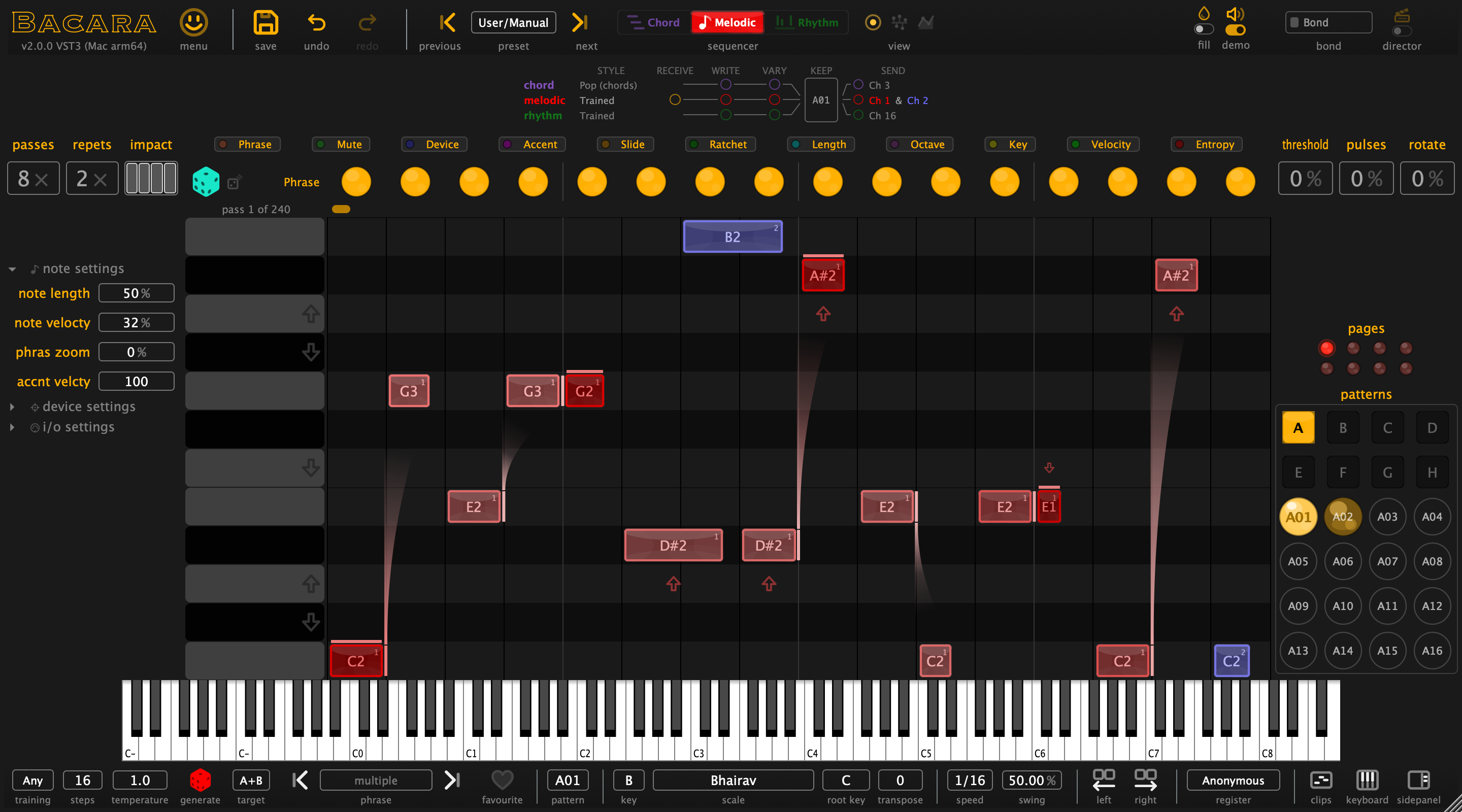
Bacara is organised in horizontal layers:
| Top Toolbar: menu, presets, undo/redo, sequencer and view | ||
| Flow: style, input, rolls, variation, pattern and output, per sequencer | ||
| Macro Panel (resizable): 16 macro knobs | ||
| Left Panel Lane passes/repeats/impact note settings, device settings, i/o settings |
Sequencer Grid Melodic / Rhythm / Chord |
Right Panel Lane threshold/pulses/rotate Page LEDs, patterns |
| Keyboard (virtual MIDI keyboard) | ||
| Bottom Toolbar: generator, phrases, pattern, key and scale, speed and swing, panels | ||
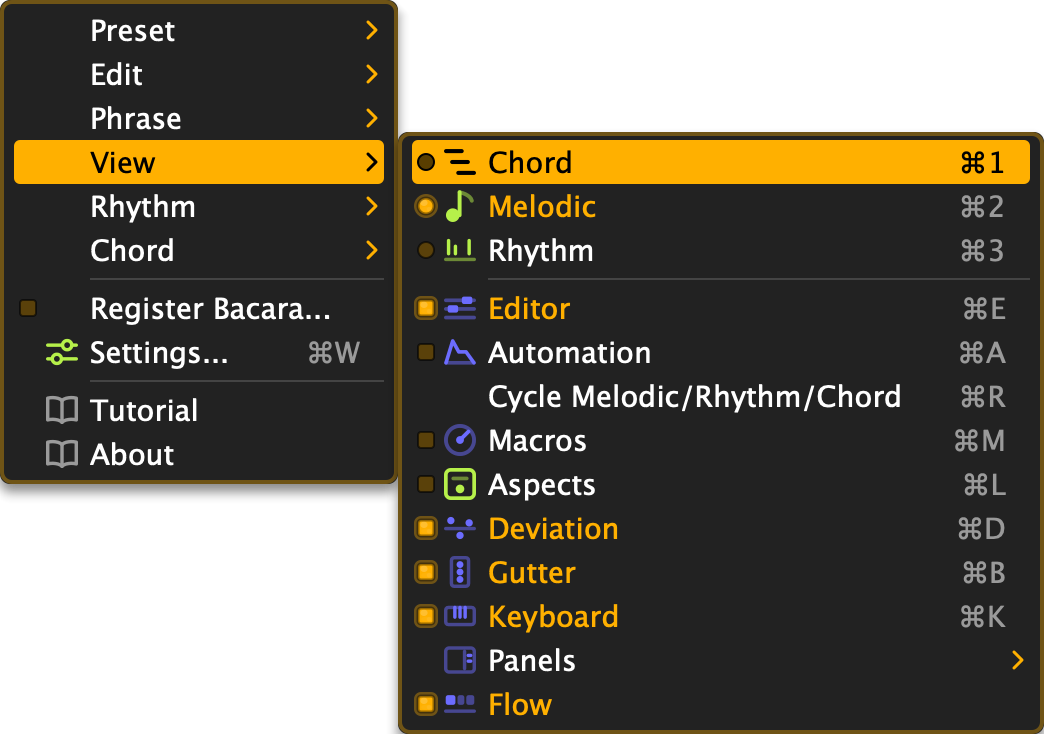
Every layer can be shown or hidden, from the View submenu or with the keyboard shortcuts. The panels in the right-hand dock have a shortcut of their own: the small list button in any panel header (or the context menu on the header) lists every available dock panel, the open ones ticked, so you can open the next one without leaving the dock.
The Three Views
The central grid shows one sequencer at a time: Melodic, Rhythm or Chord. Cycle between them with the sequencer switch in the top toolbar or ⌘+R / Ctrl+R. The left and right panels follow along, showing the parameters that belong to the view you're in.
Top Toolbar
Left to right:
- Logo: decorative, but I'm fond of it. It doubles as the progress display when Bacara is busy, and a click opens the About box
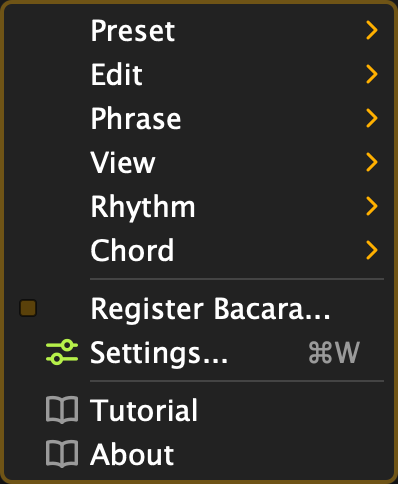
- menu (smiley icon), right beside the logo. Everything else lives here: Preset, Edit, Phrase, View, Rhythm, Chord and Control submenus, registration, settings, tutorial, about
- save / undo / redo: save the preset; undo and redo, 32 levels
- previous / preset / next: preset management. New, Delete, Copy and Paste live in the menu (see Presets and Phrases for how much one copy can carry)
- sequencer: shows and switches the active sequencer (Chord / Melodic / Rhythm)
- view: the aspects, deviation and automation buttons, for the sequencer on screen
- demo: the demo sound, see below
- fill: the fill switch: while lit, steps with a Fill trig condition play and Not Fill steps rest
- director / bond: the Director switch, the one with the clapperboard, and the Bond chip
A switch on this bar flips with a click. Its context menu offers On and Off, so a context click only asks and never flips it.
The demo sound. Bacara has a sound of its own, so a new instance is heard the moment it plays. Switch it off with demo when your own synths play. The switch belongs to each Bacara, and a project brings it back as you left it. In a bond each member sounds only the part it is cast as; on a member cast as no part the switch greys and says why. The switch is on the bar where Bacara has an audio output: in Ableton Live, FL Studio and Bitwig Studio. In other hosts Bacara is a MIDI effect with no sound of its own, and the bar has no demo switch.
When the window is too narrow for everything, the spacing goes first, then the room each item keeps around its label, then the labels shorten. Only after that do items leave, those with another way in first: redo, undo, save, then the preset trio and the view buttons. The menu beside the logo and the sequencer switch stay at any width.

Flow
Under the top toolbar, one row per sequencer (chord, melodic, rhythm) runs through what happens to its part, left to right:
- STYLE: the style it writes in, or Trained when the trained model writes
- RECEIVE: one light for all three. It fills when MIDI notes arrive, and shows a bright ring when notes arrive that Bacara does not take (a channel it does not listen to, or no incoming channel picked). Hover it to see which
- WRITE: flashes when a roll lands
- VARY: lights, while the transport runs, on a step where a deviation lane changed the part
- KEEP: the pattern slot, with a heart when the pattern is a favourite. It spans the three rows, since a slot holds every part
- SEND: where the part goes, or nothing yet. The light shows that notes left on that route; it cannot tell whether an instrument played them
A muted sequencer's row is drawn dimmer.

A click never changes the music. It shows the sequencer whose row you clicked, and on four stages it also opens that stage's panel: STYLE the Generator panel, RECEIVE the keyboard, VARY the deviation lanes, SEND the Clips panel. The context menu on RECEIVE sets the incoming note channel; in a bond, the context menu on SEND lists that sequencer's channels. Hover any column for a line on what it shows.
Switch the Flow off with Flow in the View submenu, or fold it to a single row with Compact row on its own context menu.
Bottom Toolbar
The bottom toolbar holds the generator first, then the musical context, left to right:
- training: the musical style the generator draws from, with separate training selectors for rhythm and chord
- steps: phrase length for generated phrases (1-128)
- temperature: how adventurous the generator is (1.0-5.0)
- generate (dice): roll a new phrase
- target: which melodic phrase the dice writes: A, B, or A+B
- phrase / arrows / favourite: browse the phrase history, keep the good ones
- pattern: the active pattern slot (A01-H16)
- key and scale: 12 keys, 38 scales
- root key and transpose: base key and semitone shift for the pattern
- speed: melodic step resolution relative to tempo (1/1 through 1/64, default 1/16). Rhythm and chord have their own speeds
- swing: the swing of the sequencer on screen, beside its speed: 50% plays straight, 66.7% a triplet feel, below 50% pushes ahead (25-75%)
- left / right: nudge the phrase one step round
- register: registration and licence status; it reads licensed once you are
- clips: the Clips panel: every sounding sequencer as a MIDI clip, dragged into your DAW
- keyboard: shows or hides the virtual keyboard
- sidepanel: shows or hides the right-hand dock
When the window is too narrow, the spacing goes first, then the labels shorten. Then the register item leaves, then the sidepanel, the keyboard and the clips buttons; each lands in the + menu at the end of the bar, one click away.

Toasts and Hover Bubbles
Bacara gives feedback in two ways: hover bubbles explain the control under your pointer, and toasts slide in when something happened you should know about. Neither takes focus or needs dismissing.
Context Menus
Almost everything you see has a context menu, and opening one is always safe. It never changes your music or your settings. Nothing happens until you pick a row, and closing the menu with a click elsewhere leaves them as they were. So when you wonder what a thing can do, open its context menu and read: the list is complete, with what a plain click does at the top.
Where the tutorial covers the spot, the menu ends with Explain this. It opens the tour on that very thing, paused, and touches neither your music nor your settings.
The Demo Sound, and Why It Sounds Like That
Bacara is a MIDI effect. On its own it makes no sound at all, which is a fine philosophy and a terrible first impression. So it now has a sound of its own, behind the demo switch: enough to hear what the sequencers write before you have wired up a single synth.
How it is made. Everything you hear is calculated on the spot, inside Bacara. There are no samples, not one, so the whole thing weighs nothing on disk and sounds the same on every machine, for better or worse.
- The melodic lines play through a small acid synth, one per MIDI channel, sixteen in all. A line spread over channels is heard spread over sixteen little synths, each with its own place in the stereo field: channel 1 in the middle, the others off to the sides, never at the edge. Each has one oscillator, a saw (two of the sixteen have a square, so you hear the difference), a diode ladder filter that an envelope opens, a glide that slides into the next note instead of retriggering, and an accent that hits harder and opens the filter further. Side A and side B each get a dotted-eighth ping-pong delay, B wetter and darker than A, so you can tell them apart with your eyes closed.
- The rhythm is a kit cooked from the two ingredients every drum machine of 1982 had: a sine that drops in pitch (the kick, from 160 Hz down to 48 in ninety milliseconds) and white noise shaped by an envelope (the snare, the hats, the clap). Each rhythm voice is heard as its instrument family, so a tom is a tom and a cowbell is the nearest thing the kit has to a cowbell.
- The chords play on a pad: per voice two saws detuned against each other and sent left and right, a third saw an octave up for air, a triangle underneath for body, a slow swell, a long release, a filter that breathes, and a hall of its own.
- Over all of it: the kick ducks the rest a little, the acid gets a small room, and a soft knee keeps the sum from clipping.
Why it sounds like that. It sounds cheesy. I know. The first time the pad came in under an acid line I was back in 1978, when a radio show introduced Kayak as "Classieke muziek met een modern tintje", classical music with a modern touch. That was cheesy too. It was also rather good, and it has stayed with me for nearly fifty years, which is more than most sounds can say.
So I decided to leave it alone. There is no editor for the demo sounds, no presets for them, no "just a touch of chorus", and that is deliberate: a demo synth with an editor is a synth, and the moment you start tweaking it you have stopped looking at the sequencer. The demo sound is a demonstration. Its job is to demonstrate the notes, the slides, the accents and the chords, and then to get out of the way.
Which brings me to the real plan. It is cheesy on purpose. I would like you to hear it, nod, switch demo off, and point Bacara at a real instrument. The demo sound has done its job the moment you cannot stand it any longer.
Generating Phrases
"The piano ain't got no wrong notes." (Thelonious Monk)
The generator is a character-level language model trained on real musical material. It runs entirely on your machine, with no internet connection and no account.
It is one of two engines. This chapter is the trained one, which learned the habits of a corpus; all three sequencers can also roll from a written-down genre instead: see The Algorithmic Generator.
How to Generate
- Click the dice in the bottom toolbar, or press ⌘+G / Ctrl+G
- The Phrase Target button decides where the notes land: phrase A, phrase B, or both (A+B)
- The dice's context menu picks which engine writes the notes: Trained, this chapter's, or Algorithmic (style), a melodic style's line, a bass or a lead grammar: see The Algorithmic Generator

What a Generate Writes
A throw writes the phrase and nothing else. On every step it owns six things: the note, the octave, mute, accent, slide and the step's own placement (micro timing). Every other property of that step is collected before the throw and put back after it.
Nothing outside the grid moves. A throw never touches the deviation lanes, the automation lanes, a lane's threshold or baseline, the macros, or the other two sequencers. Each of those has its own dice: the lane gutter's die re-rolls that lane, the die in the automation view rolls the active lanes' values, and the chord and rhythm views roll their own sequencer.
The two engines differ in exactly one place, and it is worth knowing which one you are throwing:
- Trained writes notes, and only notes. Any trig condition you set by hand, or with Spice, survives every throw.
- Algorithmic (style) also writes the step's trig conditions, because probability and conditions are part of the phrase a style describes.
Both leave your hand-shaped accent and slide curves in the deviation lanes alone. Hover the dice before you throw: its tooltip names the engine and spells out what that throw will rewrite and what it will keep.
Generator Settings
- Temperature (1.0-5.0): Low values stay close to the training material and sound idiomatic. High values wander further from it. Default: 1.0
- Steps (1-128): length of the generated phrase. Default: 16
- Training: the style:
- Any: picks a style at random per generation
- A: Acid A patterns
- B: Acid B patterns
- C: Classical patterns based on Bach and curated ground basses
- D: Baroque ground basses; Pachelbel, Folia, Passamezzo, Andalusian, lamento, circle-of-fifths ostinati
- E: Acid legacy
- F: Flamenco; Phrygian-dominant Andalusian cadences, por medio vamps, tresillo syncopation
- G: Gypsy / Hungarian minor; ostinati, scale walks, augmented-2nd leaps
- I: Irish traditional; jigs, reels, folk melodies
- J: Jewish / Klezmer; Freygish and Misheberakh modes with bulgar, freylekh and hora figures
- L: Alberti bass; broken-chord accompaniment in Mozart/Haydn style
- M: Minimalist; Reich/Glass-style repeating cells with phase displacement
- P: Acid P patterns
- R: Renaissance; Folia, Passamezzo, Romanesca, Ruggiero, lament bass, passacaglia grounds
- S: Satie / French Impressionist; Gymnopédie sparse bass, Debussy whole-tone, Ravel modal lines
- T: Acid T patterns
- W: Romantic; chromatic descents, wide leaps, Wagner/Chopin voice leading
- K: Klassik combined (C+D+L+M+S+W)
- X: Everything combined; cross-pollination between genres
- Y: Acid combined (A+B+P+T)
- Z: Non-acid combined (C+D+G+I+L+M+R+S+W)
With the melodic Source on Algorithmic (style) the same toolbar button picks a melodic style instead of a trainset: the Style Catalogue has the ten that ship.
The rhythm and chord sequencers have their own training selectors: see their chapters.
Sidetrack.Several of the trainings are loops with a pedigree. La Folia, the Passamezzo, the Romanesca (the ground basses behind D and R) are chord-and-bass loops European musicians improvised over for three centuries, and they have the shape of an acid bassline: the bottom end circles, everything above it varies.
Phrase History
Every generated phrase is stored automatically. From the bottom toolbar:
- Browse back and forth through everything you've rolled
- Favourite the keepers (heart icon, or ⌘+F / Ctrl+F)
- Cleanup: menu > Pattern > Cleanup... deletes every phrase you didn't favourite. It asks first.
The Algorithmic Generator
"Learn the changes, then forget them." (attributed to Charlie Parker)
There are two engines behind the dice. The trained generator learned from music: it copies the habits of a corpus without being told why they are habits. The algorithmic generator works the other way round. It is handed the rules of a genre, written down as a style, and builds a phrase by following them.
Which engine the dice uses is per sequencer, and it lives in the dice's context menu in the bottom toolbar: Algorithmic or Trained for the chord sequencer, Algorithmic (style) or Trained for the rhythm and the melodic ones. All three sequencers have styles. The melodic ones are line grammars, ten basses and a lead, written against the chord sequencer's harmony and the rhythm sequencer's drums, so the same style comes out differently under a different progression or a different drum part.
One difference from the trained engine is worth carrying into the panel: a style writes the step's trig conditions as well as its notes, because probability and conditions are part of the phrase a style describes. A trained throw leaves them alone. Everything else is the same for both engines, and the list of what a throw rewrites is in What a Generate Writes.
The Panel
Everything the algorithmic generator offers sits in one place: the Generator panel, a tab in the right sidebar beside Plugins and Hardware. Open it from menu > View > Generator, or from the style button in the bottom toolbar. Its first row is the engine switch, Trained or Algorithmic, for the sequencer you are looking at; it is the same choice as the dice's context menu, and the lit half is the colour the dice wears. With Trained lit everything below the switch greys out (the style rows, the knobs, the action buttons and the Abstract Impression), because that engine does not read them.
The panel follows the sequencer you are looking at. Switch to the rhythm view and it shows the rhythm style and its eight knobs; switch to chord and it shows the chord style and its nine; switch to melodic and it shows the melodic style and its eight.
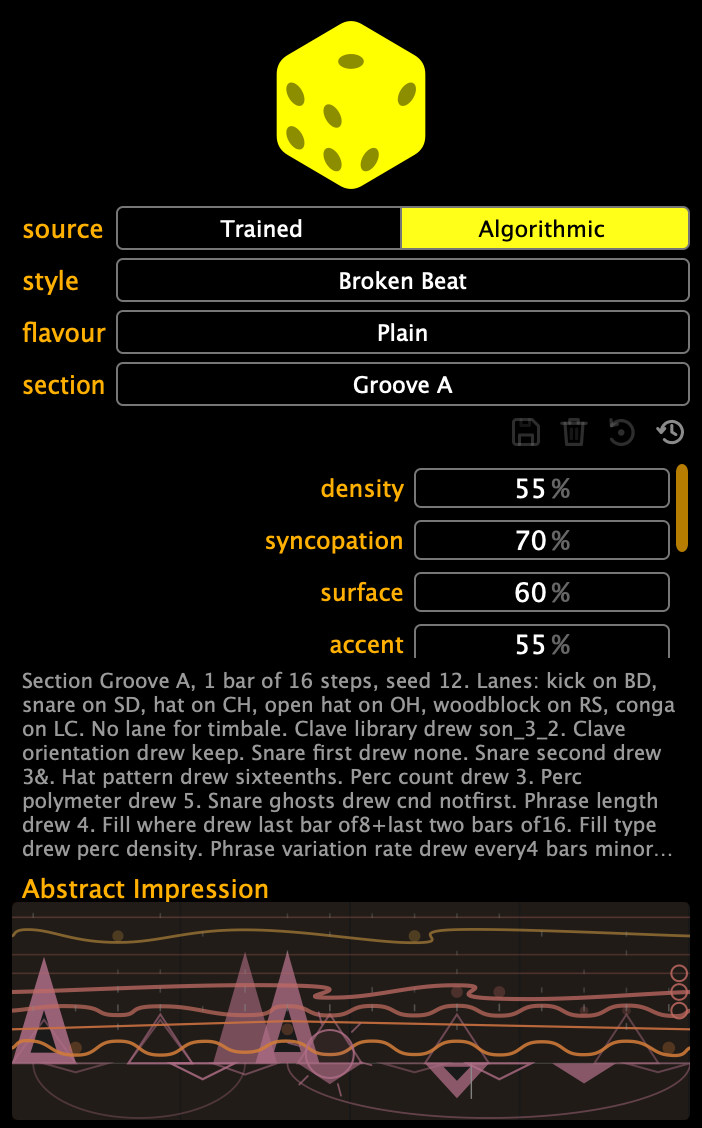 The panel on the rhythm sequencer, just after a roll: style, flavour and section at the top, the eight character knobs under them, the roll's own account of itself below that, and the Abstract Impression at the foot. |
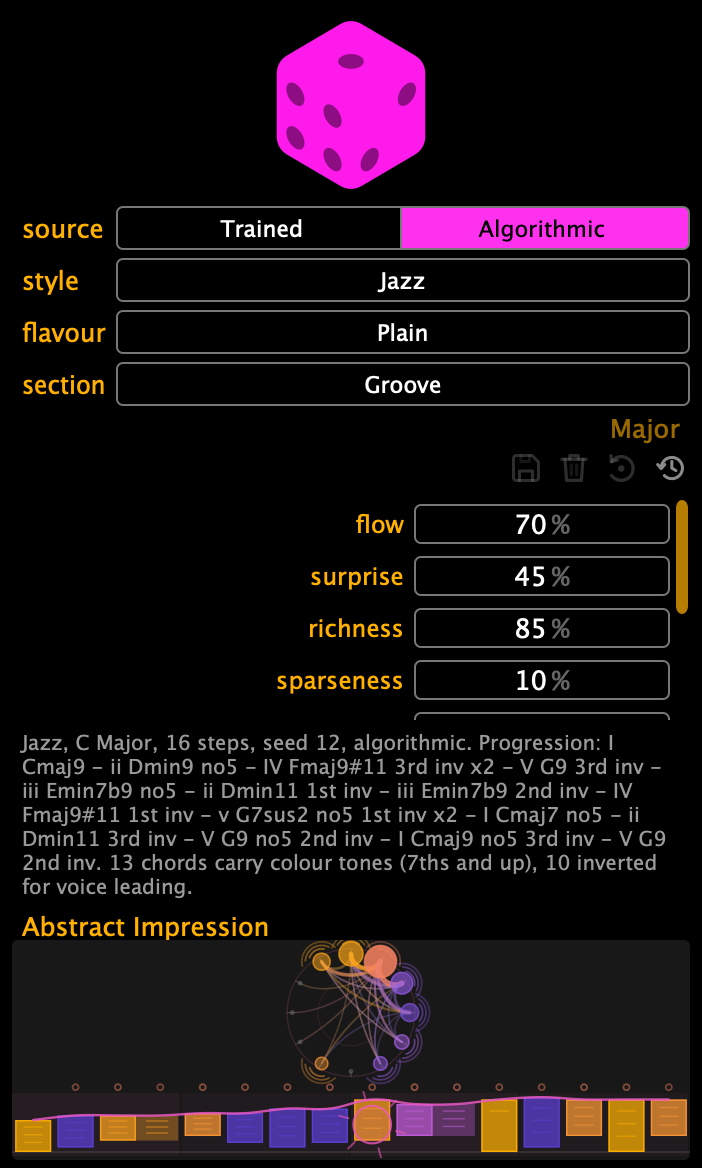 The same panel on the chord sequencer: nine dials instead of eight, no section row, and a story that names every chord it wrote. |
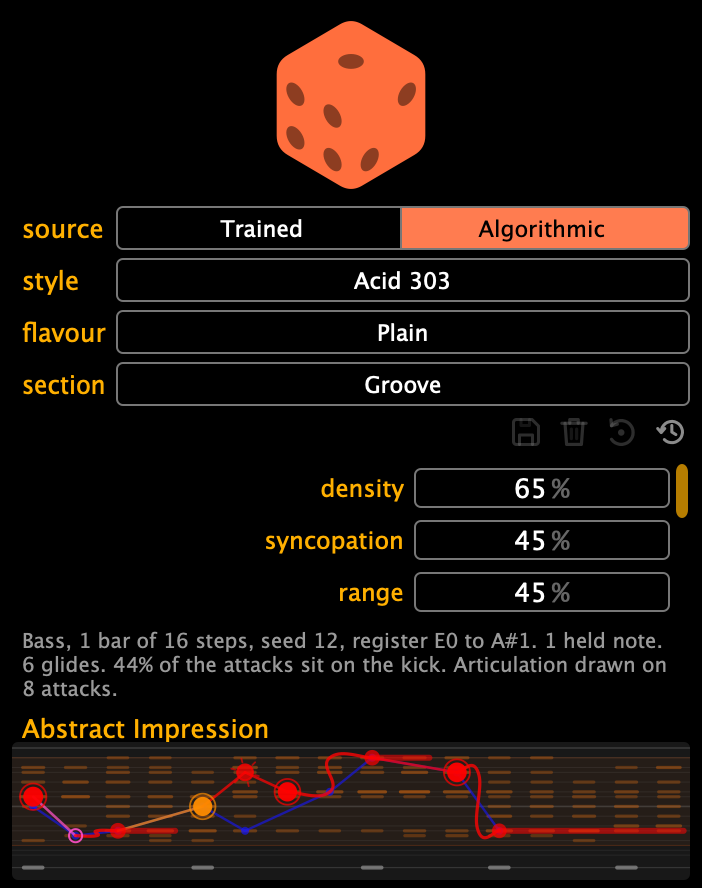 And on the melodic sequencer: a melodic style and its eight knobs, a story that counts the glides and says how much of the line landed on the kick, and the thread through the field at the foot. |
Style is the genre the roll follows. Flavour is a version of it that the style ships with (Jazz has Cool and Bebop, House has Classic and Acid, Psy has Goa), and Plain is the style with no flavour applied. Picking either regenerates at once, from the same seed, so you hear the difference rather than a different bar.
Section is which section of the style's arrangement the phrase is, and it shows on all three sequencers whenever the style has an arrangement: most styles run intro, groove, build, peak, breakdown and back, and a style with an arrangement of its own names its sections after it. On the rhythm sequencer the section decides which voices are in, when they enter, and which events fire: drop-outs, blackouts, an early re-entry. On the melodic sequencer the line thins or fills and the section's own knob settings apply. On the chord sequencer the section's knob settings ride the roll, and the section decides whether and how much the chords play, and how hard they land. Auto draws one at random, weighted by how long each section normally runs, and the default is the style's home section, the one it spends most of its time in.
The Character Knobs
The knobs do not edit the phrase. They bend the style's own rules, and the sequencer re-rolls from its stored seed when you stop moving one, the same bar, a different character. Each is a macro target, so a macro can be dropped on it and the phrase will follow the macro.
On the rhythm and melodic sides a knob the current style has no use for is greyed out. That is not a fault: a style that never places a polymetric voice has nothing for polymeter to move.
On the rhythm sequencer:
| Knob | What it moves |
|---|---|
| density | How many hits per bar the style's rules place |
| syncopation | The pull towards the displaced positions |
| surface | Hat, ghost-note and percussion busyness |
| accent | Velocity contrast and the accent patterns |
| looseness | Timing spread: swing and micro-timing, per voice |
| polymeter | Odd loop lengths on the percussion voices |
| mutation | The phrase's change budget, in the bars after the first |
| fill | Phrase-end fills, in the bars after the first |
On the chord sequencer:
| Knob | What it moves |
|---|---|
| flow | Movement against pedal: low gives vamps, high gives walking changes |
| surprise | Substitutions: secondary dominants, tritone subs, modal interchange, borrowed chords |
| richness | Stacks 7th, 9th, 11th and 13th colour tones |
| sparseness | Thins the voicing: bare fifths, drops the 5th, sheds colour tones, opens the third |
| suspension | Trades the third for a 2nd or a 4th |
| smoothness | Voice leading: how little the voices move from one chord to the next |
| natural | Damps adventurous choices back towards the diatonic field |
| register | The octave the roots are placed in |
On the melodic sequencer:
| Knob | What it moves |
|---|---|
| density | How many notes a bar the style's rules place |
| syncopation | The pull towards the e and the a sixteenths |
| range | The register: narrow around the floor, as written, or with more headroom |
| motion | Root pedal against leaps: octaves, sevenths, jumps a bar |
| repetition | How faithfully bars two and on repeat bar one |
| surprise | The odds of the unexpected note or approach |
| coupling | How closely a bass sits on the kick; how firmly a lead leaves the backbeat exposed |
| glide | Portamento on leaps, and scoops into a phrase: written as slide |
mutation and fill only have something to move when the phrase is longer than one bar: they are the phrase layer, and they write the variation into bars two and up. If the phrase is sixteen steps, they do nothing. The melodic repetition is the same kind of knob: with a one-bar phrase there is no later bar to repeat or re-roll. Fills as FILL condition, in the dice's context menu, writes the style's fills as the FILL trig condition instead of as notes, so the phrase plays straight until you hold Fill.
The Roll's Story
Under the knobs, in grey, is the generator's own account of what it just did: the section it drew, how many bars of how many steps, the seed, which rules placed which lanes, which options they drew, how many repairs it needed and what it could not carry. The chord side lists the progression as numerals and chord names, and remarks on the substitutions, colour tones, bare fifths, inversions and locked blocks it wrote.
The melodic side counts what it wrote: the attacks, the held notes, the glides and the scoops, the octave jumps, which bars were re-rolled rather than repeated, and how many of the attacks landed on the kick. If there was no chord under it, or no drums to couple to, it says that too.
It reports the roll in full: if a style asks for a voice your kit does not have, the story says so.
The Abstract Impression
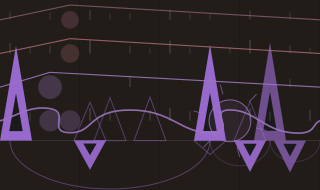
It has no labels, no legend and no numbers, because it is a picture and not a readout. How to read it:
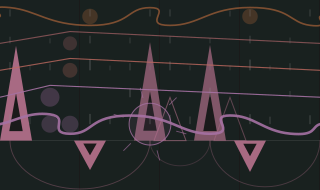
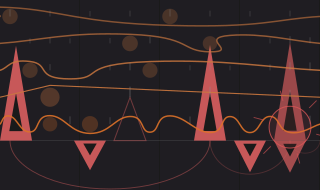
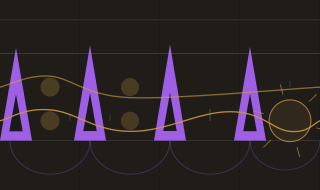
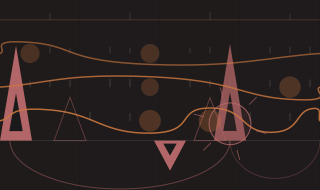
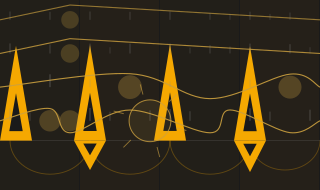
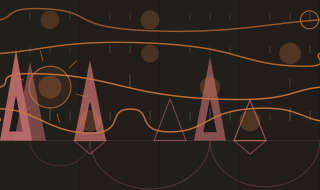
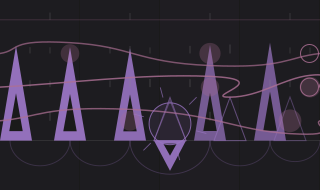
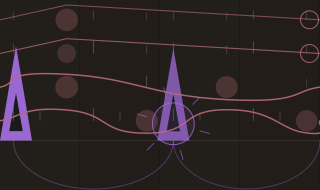
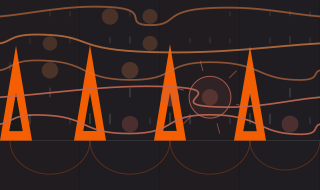
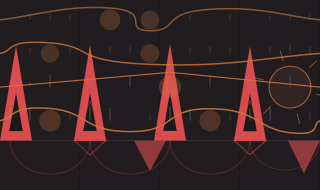
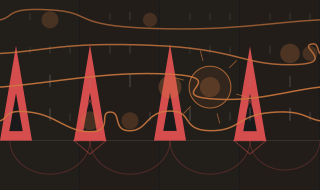
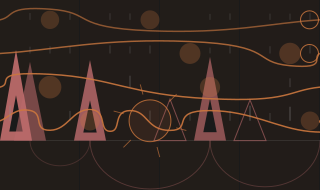
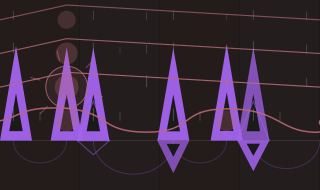
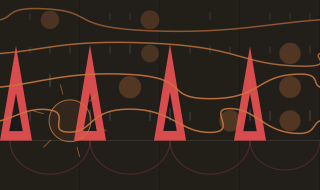
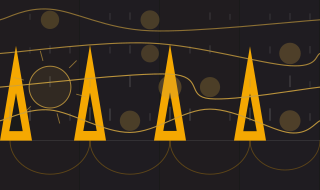
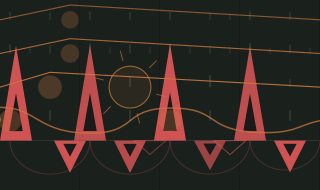
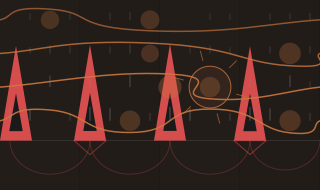
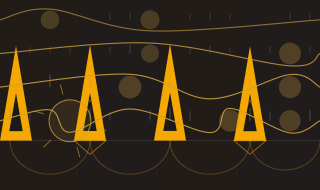
On the rhythm side, the one straight line is the horizon, and the coloured fields behind everything are the beats, weighted by how much happens inside each. The skeleton voices are triangles standing on it, the second hanging underneath so the two interlock: their width is how many hits the voice plays, so four-to-the-floor makes four wide triangles and a broken kick makes a row of narrow blades; their height is velocity. A hit the style always plays is solid, one it only sometimes plays is an outline, and an accent cuts a notch out of it. Arcs under the horizon span the silences (one per gap in the spine, sized by the gap), so a four-to-the-floor scallops evenly and a broken kick throws one long arc across half the bar. Surface voices are waves stacked above the horizon, turning at their own onsets, so sixteenth hats fold tight and a quarter-note ride makes long diagonals. Straight edges mean quantised and curves mean swung: the same vertices are drawn as a hard zigzag when a voice is machine-tight and as a bezier when it swings or drifts. Discs mark the loudest locked hits and mix where two voices land together, impulse lines are the hits a voice only sometimes plays, and an open ring is the one voice that does not agree with the bar.
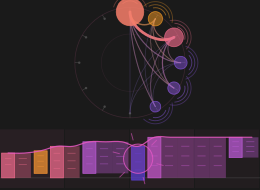
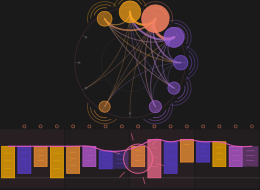
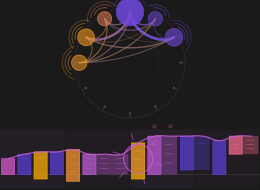
On the chord side the picture is a wheel of fifths with the tonic at the top: a root the style uses is a disc, sized by how often and coloured by whether the chords on it come out dark or bright, and a root it never touches keeps its bare tick, where it did not go is part of the portrait. Every root move is a curve bowed through the middle, so a style that circles its neighbours draws a rim and one that leaps draws a star. Halos around a disc count what is stacked on it, so a triad style has bare discs and a jazz style wears rings. Along the bottom, the ribbon is the progression in time, one block per step, as tall as the voicing is wide, and a chord that repeats runs on as one long block because a vamp is one held thing. The line over it is the top voice, curved where the voice leading is smooth and angular where it leaps. Small open circles mark substitutions.
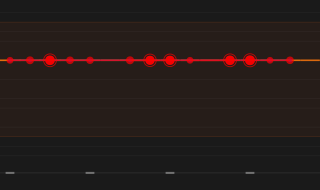
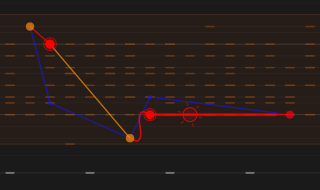
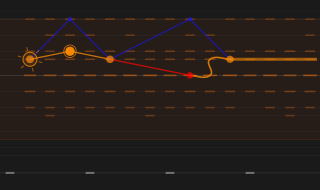
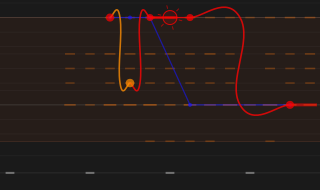
On the melodic side the picture is a line in its field. The rails are the field's degrees, faint rules across the register with the tonic a little brighter, and the register the style was given is the band behind them: range widens or narrows that band, and a style working a pentatonic draws fewer rails than one walking a seven-note field. The thread is the line itself, attack to attack: stepwise motion draws short segments and a leap draws a long diagonal, so motion is the shape of the whole picture; a glide arrives bent instead of cornered, and a held note runs on as a bar at its own pitch rather than a new attack. The beads are the attacks, sized by velocity and filled when accented: a note from outside the field is drawn hollow, between rails, which is what a passing note is. Behind the line, in the melodic grid's own B blue, is the ghost: phrase B, and how far the blue departs from the red is the variation the style allows. The cloud is the sweep and the phrase together: every pitch the style visited at that step, tight where the style is decided and tall where the note is up for grabs. Under everything runs the tether, the kit's own onsets on a line, with a tick down to it from every attack that lands with the kick, which is coupling drawn.
Colour is timing, on one ramp that means the same thing everywhere: cool for early, amber for dead on the grid, warm for late. Each wave takes its own voice's tilt, so where the backbeat drags and the kick does not, the two come out different colours in the same picture, and the triangles take the style's swing depth, the gap between its loosest voice and its tightest. That is why the catalogue sorts by feel when you scan it: the strict styles are yellow and the swung ones run orange into violet. On the chord side colour means harmony instead: indigo for dark, through violet and magenta to amber for bright. On the melodic side it means tension: a chord tone in the grid's own red, the field's other degrees warm through orange, a note off the field hot, and phrase B down at the cool end in the grid's B blue.
Two things mean the same on both sides. Saturation is certainty: a voice or a chord the style always plays the same way keeps its colour, one that flickers between seeds washes towards grey, and the surprise is the single ringed burst in the picture: the one moment the seed sweep disagrees about most. It appears once, and it lands somewhere different in every style.
The Impression updates as you turn the knobs, pick a flavour or change the section, which makes it the fastest way to see what a knob does to a style.
Saving What You Made
Under the picks is a row of four icons: save, delete, reset, reload. They are always the same four in the same order, dimmed where they have nothing to do: hover one and it says what it would do here, or why it cannot.
Move the knobs, pick a flavour, and the diskette offers to keep it. What it keeps depends on what you changed:
- a user patch: the knobs moved, the rules did not. The style is the factory one with your settings on top.
- a user style: the rules or the flavour changed too, so it is a style of its own.
The tooltip on the diskette names which of the two it would write. Either way it lands in your styles folder and appears in the picker under the factory ones, ready to pick from any preset. The bin removes a user style. The clock resets to factory: it throws away a user patch and leaves the shipped style. The circle re-reads the style files from disk, which is what you want if you have been editing one in a text editor.
Sidetrack.A style is a JSON file: distributions, hard rules and gates, with the numbers a genre runs on rather than a preset's worth of settings. Most of what is in the box came from genre specifications written by Jeroen van Zutphen: a broken-beat document corrected against a working build, and fifty-three genre profiles with their tempos, their neighbours and their arrangement forms, so what the generator follows is somebody's written-down account of a genre rather than a guess about one. They live beside the app and you can read them.
The Style Catalogue
Forty-seven styles ship with Bacara: eleven for the melodic sequencer, twelve for the chord one and twenty-four for the rhythm one, which carry thirty-five flavours between them. Every one of them is a file you can read, and every one is picked from the Generator panel.
Beside each entry is its Abstract Impression, cooked from the real generator with the style's own knob settings: what it looks like as it ships, before you touch anything. Scan them as a set. Swing shows in the curves, strictness in the straight edges, sparseness in how much dark is left.
What a Style Is
Not one of the styles in this catalogue contains a pattern. There is no loop in them, no recording, nothing sampled and nothing stored. A style is a written account of the habits of a genre, the way you would describe them to a session player: where the kick likes to land, how often the snare leaves the backbeat, whether the bass follows the kick or argues with it, how much a part may change from one bar to the next, and what this music never does.
It reads the account and writes a real pattern from it, differently on every seed, but recognisably that style each time.
Every rule says what sort of rule it is. This is why a style can be a file instead of a program. A rule can weight a choice, draw a number from a range, lay a preference map across the bar, fix an order of work, forbid something outright, check the result afterwards, hang a knob on a number, shape a contour, bend the feel of one voice, or name an arrangement: nineteen kinds in all. Because every rule declares its kind, the generator knows how to carry it out without anybody writing software for that particular style. Change a number and reload.
A pattern is built in an order. The generator works down the style's own running order, like an arranger:
- Lay the anchor: a clave, the kick, whatever the style says comes first.
- Turn the anchor into a map of the bar. Once the anchor exists, the generator works out which places in the bar are now good and which are awkward, and everything written afterwards consults that map: some parts to agree with it, some to avoid it deliberately. Clave to snare, kick to bass, drums to line. It is one mechanism with different anchors.
- Write the signature voice, the one the genre is known by, then the rest around it.
- Velocities, then the feel: the small pushes and drags, per voice.
- Write the phrase: up to eight bars, with a budget of small changes per two-bar cell, fills at the end, voices dropping out. The skeleton is left alone.
- Check it. Run the style's own tests: is the fingerprint there, has it drifted into a neighbouring genre, is bar two a copy of bar one. A failed test re-runs the stage that failed, same seed, next nudge (never a full re-roll, which would throw away the good work along with the bad).
What plays is a stack. A base every style starts from, then the style, then the flavour, then your own changes, then the panel knobs. Your changes are a patch on top, so throwing the patch away brings the factory style back as it shipped, and what did I change stays a short list. That is what the four icons under the picks are working on.
Positions are places in the bar, never step numbers. A rule says the a of 3, or the and of 2. The same style therefore works on a sixteen-step bar, a twelve-step triplet bar and a thirty-two-step bar without being rewritten, and gives each of them the same feel rather than the same step list.
The dice are repeatable. The same seed with the same style gives the same pattern every time.
What a style cannot say. Bacara makes no sound, so nothing in a style is about sound: no synthesis, no effects, no mix. The nearest it gets is a CC or NRPN aimed at whatever device does make the sound. Its tests read notes and not audio: onsets, syncopation, intervals, how often two voices coincide, yes; loudness or spectrum, no. And a style describes a phrase, not a track: it can say what a breakdown looks like, but not that the breakdown arrives at 3:20. The arrangement is played, by you.
One limit. A style can sit within range on every number it has and still sound wrong. The tests catch a lost identity. Taste is what the knobs and your own layer are for.
Melodic Styles
Each melodic style is a line grammar. Ten of them are basses: where the notes fall, which degrees they take from the chord under them, when the line jumps an octave, what is held, what glides, and how closely it follows the kick. One is a lead: a short motif placed in the gaps the drums leave, then repeated with one change each time (shifted, transposed, a note or a length replaced, the last interval turned over), and brought back whole every fourth time. The line is written against the chord sequencer's harmony and the rhythm sequencer's drums, so one style comes out differently over a different progression or a different drum part, and with Phrase Target on A+B the roll writes the line into A and a variation of it into B. A pattern of sixteen steps holds the lead's motif alone; give it thirty-two or sixty-four and the repeats appear.
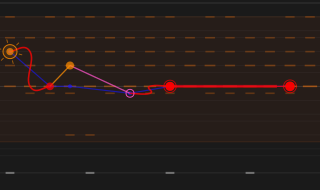 |
Acid 303 Restless sixteenths on and off the kick: root, flat third, fifth, seventh and octave with a chromatic approach, octave flips, tied pairs and glides, and accents drawn from a wide velocity band. Bacara's home ground. Flavours: Analord. |
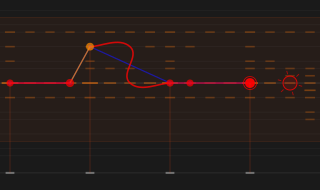 |
Bruk The broken-beat bass: every kick onset plus two to five notes on the e and the a, root, octave, seventh and fifth taken from the chord, octave jumps on the offbeat sixteenths, a chromatic approach into the change, held notes and Minimoog glides. Flavours: Minimal, Boogie, Dub, Dego. |
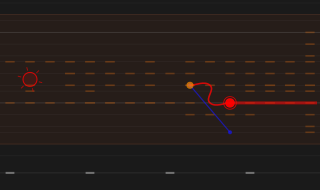 |
Bruk Lead The broken-beat lead: a one or two bar motif of three to seven notes in the gaps the drums leave, minor pentatonic plus the Dorian sixth, chord tones on the beats, the flat five passing through and the b3 sliding into the 3 over a dominant chord; every repeat takes one change and comes back whole every fourth time. Flavours: Time Loop, Restless. |
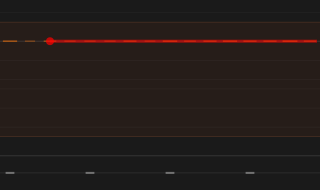 |
Dub Sub The dub techno sub: a root pedal more often than not, root and fourth gated short, or root, flat third and fifth down in the sub octave. One to three notes a bar, and it changes only where the section does. |
 |
EBM Hammer One note hammered in sixteenths, with the velocity pattern doing the composing and the odd octave for relief. EBM, hard techno, dark electro. |
 |
Electro Hook The bass as the lead: a five to seven note hook on a wide table, octave jumps, repeating with small mutations. Dark electro, hypnagogic techno, the motif voice. |
 |
Glide Groove The warm mono glide and the fingered bass guitar: a rolling eight to eleven note line played in a whisper, small steps, an octave bounce, legato glides between close neighbours and an answering fourth bar. Micro house, soul house, downtempo, chillwave. |
 |
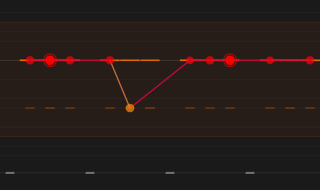
Log Drum The amapiano log drum: four to seven melodic bursts leaning late in the bar, off the kick, root, fifth, fourth and octave, with slides between them. |
 |
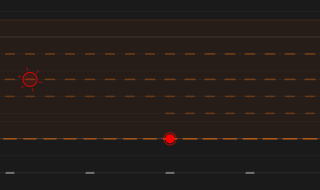
Psy Galloper The psytrance bass: every sixteenth between the kicks, on the root, the odd octave, and never on a beat. |
 |
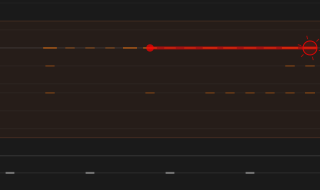
Roller The reese and the wobble: one to three long notes a bar on the root, the seventh and the fifth, each held to the next and sliding into the leaps. Drum and bass, dubstep, night bus. Flavours: Rolling. |
 |
Sub Pedal The calm sub or moog line under techno and house: a root pedal more often than not, or root and a neighbour, a minor figure, a half-time riff. One to four notes off the kick, octave jumps rare, and off the one. Flavours: Figure. |
Chord Styles
The chord styles are functional harmony written down: which degrees the progression walks between, which substitutions are allowed, what gets stacked on a triad and how the voicing moves. Each also has a trained partition of the same name, so the same genre is available to the Trained source: picking the style sets both.
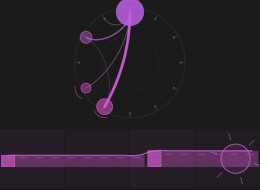 |
Psy A Phrygian pedal with a bII lean. The walk sits on the one and visits the bII and the bVII; no substitutions at all, bare fifths and sus chords instead of triads, one register, the top note nailed down. Flavours: Goa. |
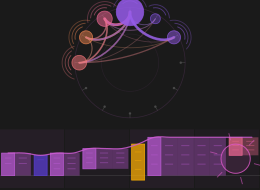 |
Psybient Dorian drift, halfway between Psy's pedal and Ambient's pads. The walk moves from the one to the IV, the bVII and the bIII and never cadences; minor ninths and sus2 on long holds, open voicings, and a top voice that stays put. Flavours: Deep, Dubby. |
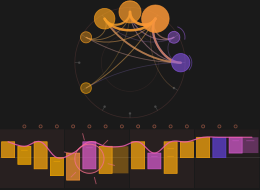 |
Pop The four chords and their borrowed cousins. I, V, vi and IV carry everything, V to IV is as welcome as V to I, and the escapes are the borrowed bVII and bVI rather than jazz dominants. Triads with add9 as the colour. Flavours: Ballad, Synthpop. |
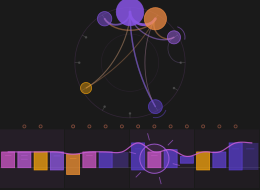 |
Classical Common-practice harmony in harmonic minor, so the dominant is a real major V and the leading-tone vii exists. Pre-dominant to dominant to tonic, secondary dominants as the one substitution, the 4-3 suspension, and root position at the cadence. Flavours: Baroque, Romantic. |
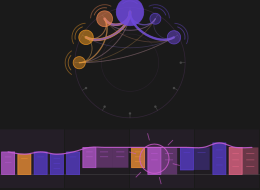 |
House Dorian deep-house stabs. The i and the IV carry the vamp with the bVII and the ii as the other colours; sevenths always, ninths on half the chords, shell voicings that drop the fifth, and a smooth top line. Flavours: Classic, Acid. |
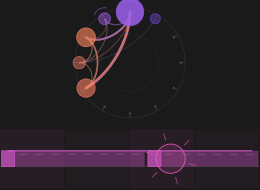 |
Trance The uplifting minor loop, i-VI-III-VII and its relatives, in triads with add9 as the colour, sus2 stabs and bare fifths for the supersaw to sit in, all in one register. Flavours: Progressive. |
 |
Ambient Lydian pads that barely move. The walk drifts inside the tonic family and up to the Lydian II instead of cadencing; maj7, add9 and #11 colours, the fifth dropped and the third opened so the extensions breathe, and a top note that stays where it is. Flavours: Drone, Lush. |
 |
Jazz Extensions and substitutions, walking. ii-V-I is the pull, tritone substitutions weigh as much as secondary dominants, sevenths are the floor and ninths the norm, and the voice leading follows the top line rather than root position. Flavours: Cool, Bebop. |
 |
Lofi Jazzy Dorian loops, lazily voiced: ii-v-i and i-iv-bVII with the bIII as the colour, sevenths always and ninths on most, Rhodes voicings that drop the fifth, long holds and a top voice that barely moves. Flavours: Boom Bap, Jazzy. |
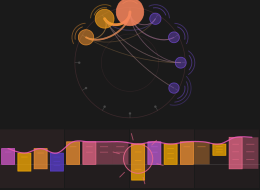 |
Funk Mixolydian dominant vamps. The walk sits on the one, swings to the four and back, and the bVII turns the loop round; dominant sevenths and ninths for colour, sus4 stabs, tight voicings that stay in one register. Flavours: P-Funk, Minimal. |
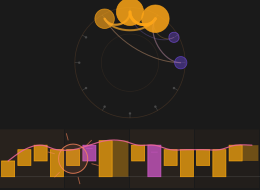 |
Folk Three chords and the truth. I, IV and V with the vi as the one colour, plain triads that keep their fifth, sus4 at the cadence, and voicings that barely move. Flavours: Celtic, Hymn. |
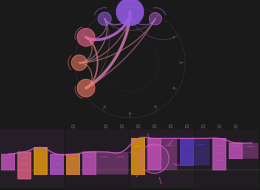 |
Cinematic Slow, big and minor. Long holds on i, VI, iv and III, with the raised leading tone arriving only where it resolves; open spread voicings, a bare fifth for the low drone, and a top voice that moves as a line. Flavours: Epic, Tension. |
Rhythm Styles
Each rhythm style carries its own tempo band, meter and grid, the voices it expects, the rules that place them, and an arrangement to draw sections from. The tempo is what the style was written for, not a limit: Bacara does not change your tempo, and every style will run at whatever you are playing at.
Most styles also carry flavours. A flavour is a version of its style with its own tempo band, and each one is listed under the style it belongs to.
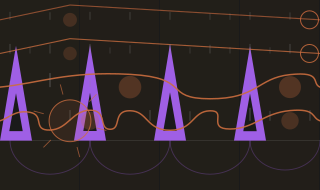 |
Afro House · 118-124 BPM Four to the floor with the hand percussion promoted to the front. Congas, shakers and bells carry the groove while the kick just keeps time. |
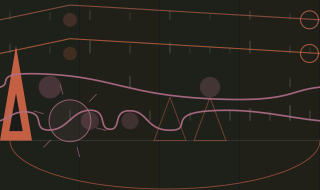 |
Amapiano · 110-116 BPM The log drum is the low end. The pocket drags on purpose, and the harmony leans jazzy: minor ninths and elevenths over a slow, wide groove. |
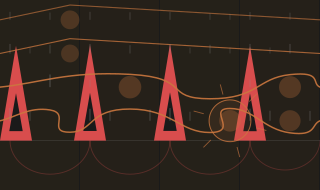 |
Ambient Techno · 118-122 BPM Techno with the energy capped: few voices, no peak, nothing that builds. The palate cleanser between harder styles. Flavours Pop Ambient · 96-116 BPM: The chord cloud: overlapping four-bar swells, harmony as fog, and a soft kick thudding somewhere under the forest floor. Limping Techno · 118-124 BPM: The drop is more distortion, not more layers. The bass leads, the piano is felt rather than played, the groove limps, and the whole thing breathes over a drone. |
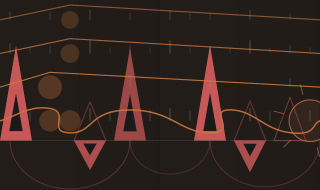 |
Breakbeat · 128-132 BPM A vocal hook sequencer: chopped voices arranged into a recurring topline you can hum, over huge detuned pads and breakbeats. Euphoria with a lump in its throat. |
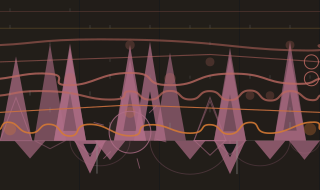 |
Broken Beat · 108-132 BPM West London's answer to house: a clave-derived rhythm with the beat-4 backbeat arriving early, a straight skeleton under a swung surface, and octave-jumping Moog bass. The most closely specified style in the box. Flavours Minimal, Kaidi, Boogie, Dub, Drunk. |
 |
Downtempo · 86-94 BPM Tape warble as an aesthetic, with audible pitch instability on everything: a boom-bap grid, band-limited colour, and voices like a half-tuned children's broadcast. Flavours Brushed Downtempo · 102-112 BPM: A tonal slice of the track's own ambience, pitch-detected, tuned to the key and looped as a melodic ostinato, over brushed drums and a fingered bass. Nu Jazz · 108-120 BPM: Real progressions: voice-led jazz movement per four-bar phrase, ninths and elevenths, Rhodes and felt piano over a band-feel kit. |
 |
Drum & Bass · 170-175 BPM A dense ride, a cracking snare and long rolling notes rather than sparse dots. The break melts and the drop dives. Flavours Drill n Bass · 164-176 BPM: Odd cycles: kick, snare and bass share a fourteen- or ten-step loop over a 4/4 transport, so it lurches without ever losing the beat. Drill-chopped breaks and retrigger stutters over the top. |
 |
Dub Techno · 118-130 BPM A deterministic four-on-the-floor kick, offbeat hats, a sparse clap, one minor chord stabbed off the downbeat and a sub pedal. Variation is timbral and subtractive rather than harmonic: the style is largely about what not to do, and how slowly to change it. Flavours Chain Reaction, Fast BC, Rhythm and Sound, Deepchord, Pole. |
 |
Dubstep · 138-142 BPM Halftime at 140: the kick and snare take a bar where four-to-the-floor would take a beat, and everything else lives in the space that leaves. |
 |
EBM · 118-126 BPM One bass note hammered in sixteenths where the accent pattern is the composition, under militant drums and shouted chops. Body music. Flavours Dark Electro · 106-118 BPM: Brooding portamento menace with orchestral string stabs and militant snares. Black leather electro. |
 |
Electro · 122-130 BPM The haunted Drexciya detune: electro that sounds like the machine is singing rather than being played. Flavours Electro Breaks · 124-132 BPM: Big-beat family: the break plays nearly untouched and there is never a 303. Showy, and unapologetic about it. |
 |
Footwork · 158-164 BPM Chopped vocal loops and triplet rolls over tumbling 808-tom chatter, at a tempo that reads as fast and slow at once. |
 |
Gqom · 124-128 BPM Durban triplets, and the only non-duple grid in the box. Broken triplet kicks, cavernous emptiness, chant chops and almost no harmony. Menace by subtraction. |
 |
Hard Techno · 144-150 BPM The riff and the hammer, taken faster and harder than either was meant to go. Flavours Big Room Techno · 130-136 BPM: Chunky, celebratory techno: latin percussion, hype vocals at the drop, a loop-roll edit into it, and a habit of pivoting to the relative major. Riff Techno · 132-140 BPM: The riff hammered without mercy, a hand-played 909 that never sits still, sci-fi string dissonance and tool-track form. Tom Techno · 130-138 BPM: Rubbery FM toms carry the groove where the bassline would normally be: tonal, fat, wobbling and central. |
 |
Hardcore · 138-146 BPM Rave stabs as kick-unison riffs, pitched-up vocal stabs and the sped-up hook. Ninety-two, and proud of it. |
 |
House · 124-129 BPM The middle of the road, in the good sense: a tight kick, a rolling hat and just enough percussion to keep it moving. Flavours Filter House · 120-126 BPM: The one family allowed major harmony: the flip, the loop roll, the filter ride and the French vocal cut. Lo-Fi House · 118-124 BPM: Crushed, dark, hissing and slightly seasick. Everything sounds resampled off a dying machine. Soulful House · 115-122 BPM: Harmony that sounds sampled (wow, crackle, dark filtering, abrupt loop-cut tails) over MPC-lazy swing, hats early and snares dragging behind the beat. Progressive House · 122-128 BPM: The trance gate: sustained pads chopped by a sixteen-step gate pattern into a pumping hook. Huge, clean and patient. |
 |
IDM · 128-135 BPM Heavy resequencing, every bar different, and no apology for the odd bar length. Flavours Braindance · 100-126 BPM: Wrongness on purpose: a music-box melody with chromatic aches that resolve by semitone, everything tuned slightly sour, and breaks that melt rather than cut. |
 |
Jersey Club · 136-142 BPM The five-kick cell and bed-squeak chops, with triplet roll builds borrowed from gqom's grid. |
 |
Minimal Techno · 121-125 BPM Berlin restraint, but moving. Very little happens per bar and all of it is meant to. Flavours Minimal 909 · 128-133 BPM: Hard-hitting but sparse: a strict voice budget, the 909 ride, click percussion, echo throws and a cavernous 303. The tension is in what is missing. Rominimal · 124-128 BPM: Length as a parameter, and a percussion orchestra: two or three extra polymetric voices standing in for melody for minutes at a time. Micro House · 126-129 BPM: A warm glide bass leading in a whisper, drums drowning in ghost notes, vocal debris working as percussion, restraint everywhere except the low end. Clicks and Cuts · 108-120 BPM: Precision as identity (zero swing, zero jitter, no ghost notes, no fills, almost no reverb) over a microsound kit of pure sine bleeps and shaped noise bursts. Glitch minimalism with a felt piano heart. Phasing Techno · 128-132 BPM: Reich phasing, built in: a second copy of the percussion pattern drifts a sixteenth every four bars, locking in and out of sync over spectral drones. Psychedelic by construction. |
 |
Psytrance · 142-148 BPM The rolling galloper: a relentless offbeat bass, phasing percussion for the trance state, and an acid lane over the top. |
 |
Reggaeton · 94-104 BPM The dembow cell (the displaced tresillo snare) under dreamy pads, glide bass and vocal debris. |
 |
Techno · 126-132 BPM The straight 909 pulse: a kick on every beat, offbeat hats, and a snare or clap that only turns up now and then. For the squelch, pair it with a 303 line from the melodic styles. |
 |
Trance · 134-140 BPM The darker rolling cousin of the anthem. It gets the gate, never the big melody. Flavours Uplifting Trance · 136-140 BPM: The anthem: a sixteen-bar A-A-B-A supersaw melody carrying the track, naked in the breakdown and full at the peaks, with the accelerating roll, the gap, and a deep pump underneath. Progressive Rave · 126-132 BPM: A spoken vocal slice looping rhythmically as an instrument for sixteen bars at a time, under nineties progressive arpeggios and thirty-two-bar patience. Festival EDM · 126-130 BPM: The unison drop riff: at the drop the kick and a huge stab-lead hit the same syncopated pattern in lockstep, so the rhythm section is the melody. Builds teach the hook on tuned toms. |
|
UK Garage · 128-134 BPM Two-step where the vocal library becomes an instrument and the MPC drags: slices drop out of the break rather than being added to it. Flavours Bassline · 138-142 BPM: Swung four-to-the-floor garage bounce under a talking bass that morphs through vowel formants on the beat divisions. Nocturnal Garage · 134-140 BPM: Unquantised two-step (hits placed by hand rather than swung) with pitched wordless vocal wisps as the melody and vinyl crackle promoted from patina to instrument. Three in the morning, raining. |
Sessions
The reference chapters describe the controls. The sessions below describe an evening with them. Each one takes ten minutes if you rush, an hour if it goes well.
Session one: a first acid line
- New preset (⌘+Shift+N / Ctrl+Shift+N). Leave the scale on Chromatic. Acid does not apologise.
- Set Training to A and roll the dice until something makes you grin.
- Roll a few more times anyway. The history keeps every phrase you generated: press Up arrow and the previous one is back.
- Now stop generating and start bending. Find the Slide lane and raise its threshold until notes begin to pour into each other. Then Accent, same move.
- Set the temperature to 2.5 and roll once, just to see what lives out there. Then come back.
The model proposed the line, the lanes moved it, you chose what stayed.
Session two: a groove that plays itself
- Switch to the Rhythm view (⌘+R / Ctrl+R). In the menu: Rhythm > Setup as 909.
- Give the rhythm something that drums: a drum synth or sampler on its own track (or a drum machine at the end of a cable), with the rhythm's channel aimed at it. The 909 setup sends the classic TR-909 note map, so a 909-style kit lines up voice for voice.
- Set the Rhythm training to 909 and roll the dice. You have a beat. Roll until it swings.
- Pick the closed hi-hat voice and set its steps to 12 while everything else stays at 16. Polymeter: the cheapest interesting trick in rhythm. The groove now takes 48 steps to come home.
- Raise the pulses on the kick's trigger lane a little. Extra kicks arrive and leave across the passes. The result sounds played by hand.
- Set the rhythm swing to about 55%. Go make coffee. If it still sounds good when you come back and your attention is elsewhere, it is good.
Session three: Bach owns the bassline
- Melodic view, Training C, scale Minor Harmonic, roll.
- Switch to the Chord view and sketch on the wheel: click i, iv, V, i. Voice-leading is handled; nobody needs to know it took four clicks.
- Open Chord > Melodic Scale Source. A new instance already reads Chord there; in an older project, pick it. The progression now governs the melody as it passes. The line bends to the harmony the way a continuo player would, except this one never complains about the tempo.
- Roll the melodic dice again while the progression runs. Every roll lands inside the harmony.
Session four: the jam that never repeats
- Take any pattern you like. Set the Phrase lane to 8 passes with 2 repeats: sixteen bars before the A/B story circles round.
- Give Mute, Octave and Length different passes counts: 3, 4 and 5. They come back into phase once every sixty passes. You will not be counting.
- Set the deviation steps longer than the pattern: the curves drift against the notes, and the same line keeps arriving in different weather.
- Put your hands on the macros (the defaults already hold the main thresholds) and perform the drift instead of programming it.
- Record twenty minutes into your DAW. Somewhere in there is an arrangement.
The Melodic Sequencer
The melodic sequencer is the note phrase: the thing the dice writes and the deviation lanes bend.
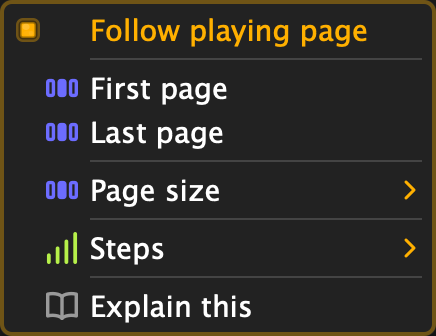
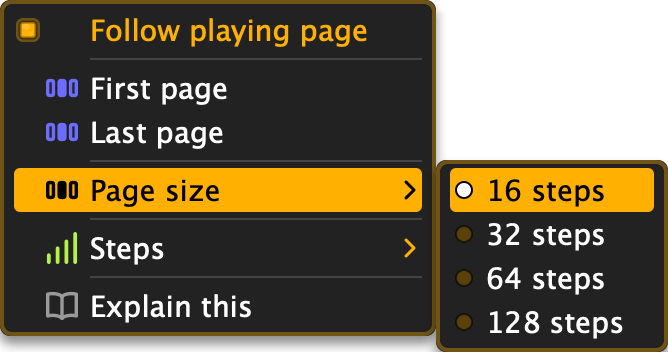
- Horizontal axis: steps (1 to 128, shown one page at a time - 16 steps per page by default, and the pager's context menu sets that to 32, 64 or 128 if your window is wide enough to want more at once). The page LEDs in the right panel work like a box's: the lit LED is the page you see, the flashing one is playing; click an LED to jump to that page (while playing that takes over from follow until the next start; the pager under the grid does the same)
- Vertical axis: pitch
- Blocks: notes: red for phrase A and blue for phrase B, brighter the higher the octave, deeper in colour the louder the note (an accent is full strength), grey when muted


Editing Notes
- Click in a step's column to set its pitch: the note moves to the row you clicked
- Drag to paint pitches across steps in one stroke, a single undo step
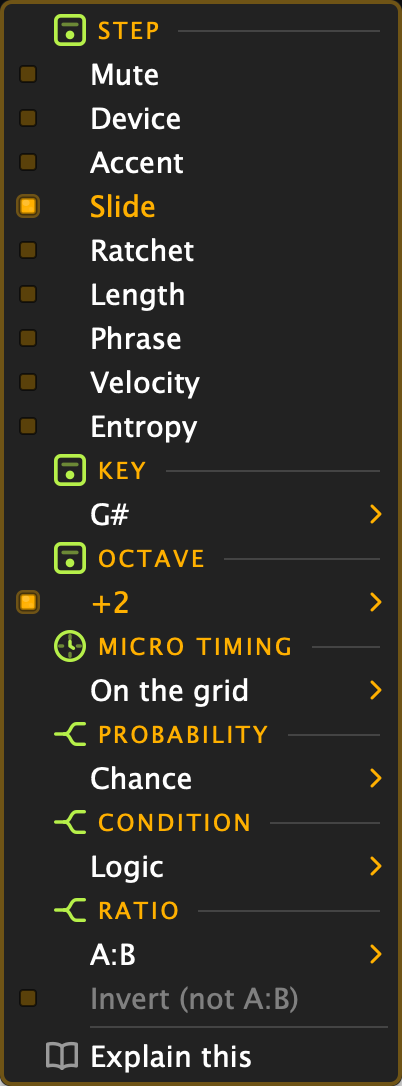
- The step's context menu holds the detailed edits: mute, accent, slide, ratchet, length, key, octave, entropy, micro timing and trig conditions
- Keyboard editing: the arrow keys move a cursor through the grid, Return or Space writes the note, Escape lets go
Micro timing
A step's micro timing is its own fixed placement: how far early or late it sits, independent of the swing knob. It is set from the step's context menu and reads in milliseconds ("8 ms late", "3.9 ms early") at the tempo and step length you are playing at, with the step fraction beside it; More... opens the full ladder out to half a step each way. It is added to the swing, so the whole step moves with it: the note, its gate and the step's automation. A step that carries one draws a small bar from the centre of its block towards where the note lands, and the gutter's context menu offers Straighten the phrase to put everything back on the grid.
The Algorithmic generator writes it: a melodic style's measured feel (a bass that sits behind the kick, a lead that leans into the beat) lands in the steps rather than in the swing knob, which stays straight for you to turn on top. The rhythm sequencer has the same aspect per voice, and freezing a melodic line onto a rhythm voice carries the placements across with it.
Every step carries a note; there is nothing to add or delete. A step you don't want to hear is muted (from its context menu or the Mute deviation lane), and un-muting brings its pitch back as it was.
Notes default to half a step long; a slide ties a note to the next and fills the gap, the classic 303 glide.
Slide Needs the Right Synth
Most of what Bacara writes is plain MIDI that any synth honours: mute, length, velocity and accent all arrive as ordinary notes and velocities. Slide is the odd one out. On the wire, a slid note is held a fraction past the next note's start, so the two overlap briefly on the same channel, classic legato phrasing. Whether that becomes a glide is the synth's decision:
- A monophonic synth in legato mode with glide (portamento) dialled up hears the overlap, keeps the envelope open and bends the pitch across, the 303 sound. Any mono synth can do it: set its voice mode to mono or legato and give it some glide time.
- 303-style instruments: the TB-303, its hardware clones and the 303 plugins, which are built around this behaviour and glide out of the box.
- A polyphonic synth just plays the two overlapping notes: no glide, merely a slightly longer note. Nothing is broken: the synth has no portamento to glide with.
Slides also need consecutive notes to land on the same MIDI channel: see Output Routing if a device distributes across channels.
Phrases A and B
Each pattern slot holds two melodic phrases, A and B. Which one sounds on a given step is decided by the Phrase deviation lane: at threshold 0 you hear only A, at 100 only B, and anywhere in between the lane's curve interleaves them: roughly that percentage of steps flips to B, in a pattern that stays put until you regenerate the lane. Two patterns and one lane give you call-and-response, fills, or a slow morph from one line into another.
The Phrase Target button (⌘+T / Ctrl+T) chooses what the dice and the phrase history act on: A, B, or A+B.
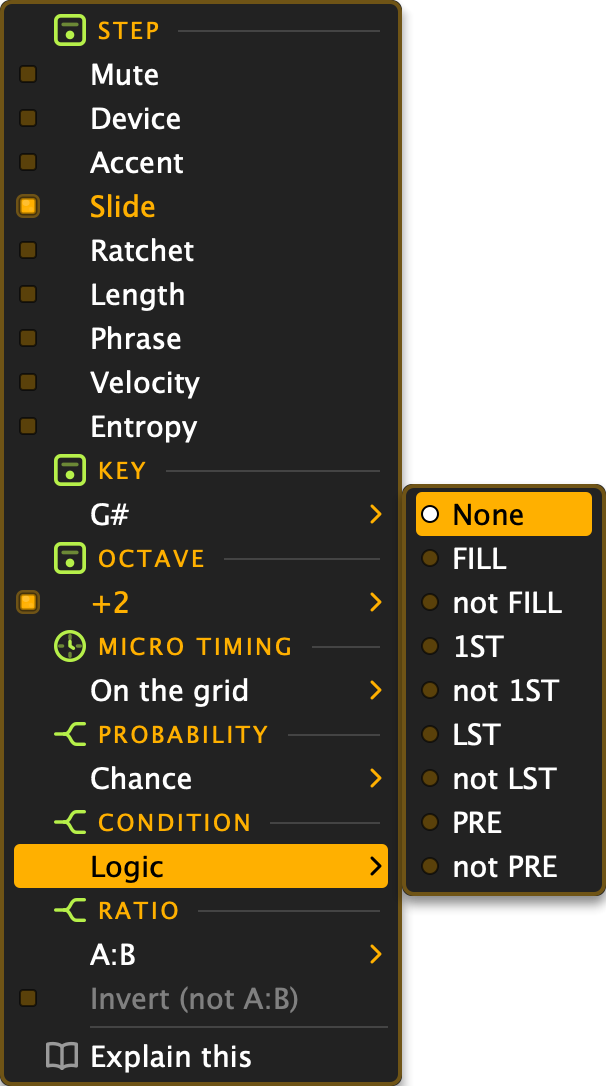
Trig Conditions
Every step can carry a condition, set from the step's context menu. Click the step with the right mouse button (or Ctrl+click on a Mac) to open it:
- Probability: the step plays this percentage of the time
- Fill / Not Fill: plays only while fill mode is on (or only while it isn't). Remote control switches fill on and off (CC 11)
- Pre / Not Pre: plays only if the previous condition on this step passed (or failed)
- First / Not First, Last / Not Last: plays only on the first (or last) pass of the pattern's deviation cycle
- Ratios like 2:4: plays on the 2nd of every 4 loops. !2:4 plays on every loop except that one
Phrase Length
- ⌘+] / Ctrl+] doubles the phrase's step count, ⌘+[ / Ctrl+[ halves it
- The Shift Left / Shift Right toolbar buttons rotate the phrase a step at a time
Note Parameters (Left Panel)
The note settings section (open by default; click its header to fold it away) holds:
- note length (0-100, default 50): gate time. Higher is more legato
- note velocity (0-100, default 80): how hard unaccented notes play, as a percentage of the accent velocity
- phrase zoom (-100 to +100): zooms the grid display
- accent velocity (0-127, default 100): the velocity of accented steps. Unaccented steps play at note velocity percent of this
The Chord Sequencer
"I came into the world very young, in an age that was very old." (Erik Satie)
The third sequencer is the harmonic floor: a timeline of chords that can colour the melody, or govern it outright.
The Timeline
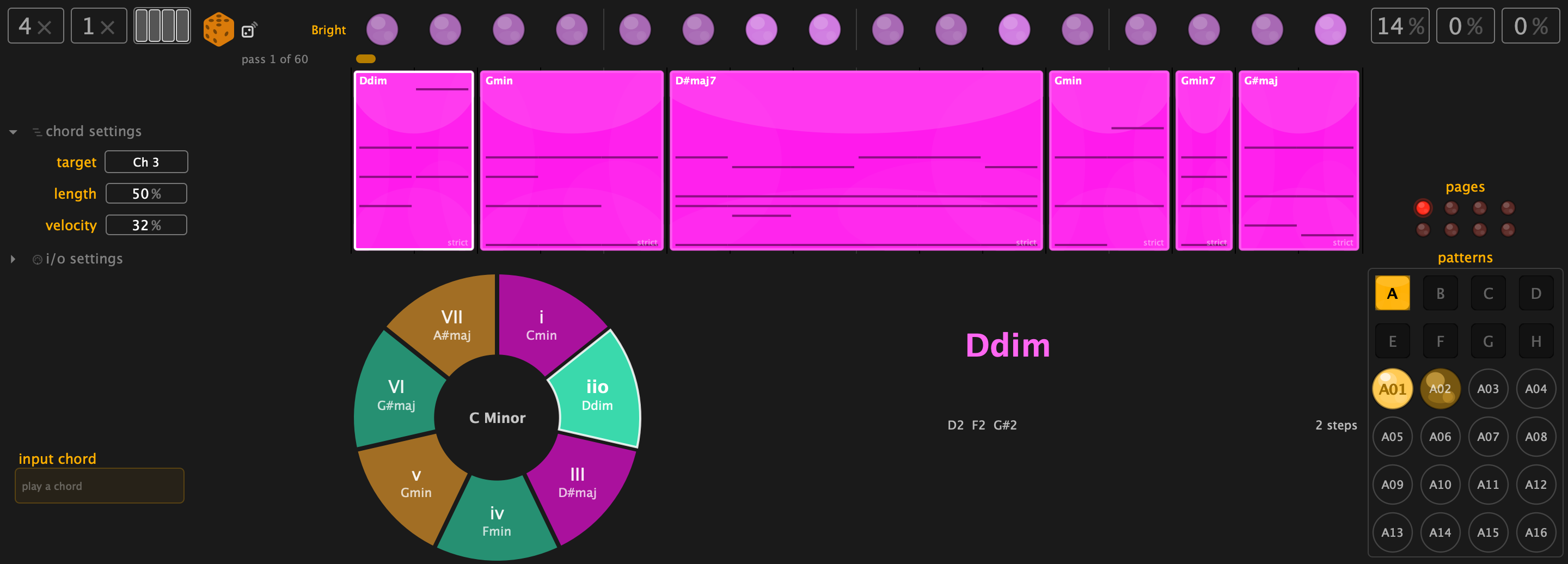
Chords sit on a timeline as blocks: drag them to move, resize them to change duration. The chord sequencer has its own speed and its own Play/Mute switch, and its output goes to its own routing target, so the progression can play a pad on a second synth while the melody runs elsewhere. Next to the target in the left panel sits its length: how long every chord holds at playback, whichever engine or hand wrote it. Low releases early so the tails breathe, mid connects, high melts one chord into the next with only the changed voices re-struck. Under it sits its velocity: how loud the chords play, on their own, whatever the melodic line's velocity. A project or preset saved before it existed opens with the chords as loud as its notes, the way it sounded then. Its length follows the steps slider like the other sequencers: drag it and the progression tiles when growing and crops when shrinking, no regenerate needed (the pages context menu offers the same in whole pages).
The Chord Wheel
The chord wheel shows the current key's harmony as a circle of degrees. Click a degree to audition or place it. In sketch mode, click degrees in the order you hear them and Bacara writes the progression for you, voice-leading included, so the chords move smoothly instead of jumping.
The Chord Generator
The chord sequencer has a generator of its own, with a Generate Source of Algorithmic or Trained (Chord menu, or the dice's context menu). The Algorithmic source is a style (functional harmony written down as rules), and its style picker, its eight character dials and its Abstract Impression all live in the Generator panel. The chord sequencer has a scale and a key of its own, separate from the melodic ones: with the chord view shown, the bottom toolbar's Scale and Key pickers address them (in the melodic view they address the melodic pair, as always). The roll is written in them whichever engine rolls; picking a style presets the chord scale to the style's own (Classical brings harmonic minor, Cinematic natural minor), and you may change it afterwards. Chromatic and Custom are no harmonic field, so the chord list does not offer them. Twelve chord styles ship, from Folk's three chords to Jazz's tritone substitutions; the Style Catalogue has all of them.
Turning any dial re-cooks the progression in place (same seed, new character), so you hear what the dial does without throwing the die again.
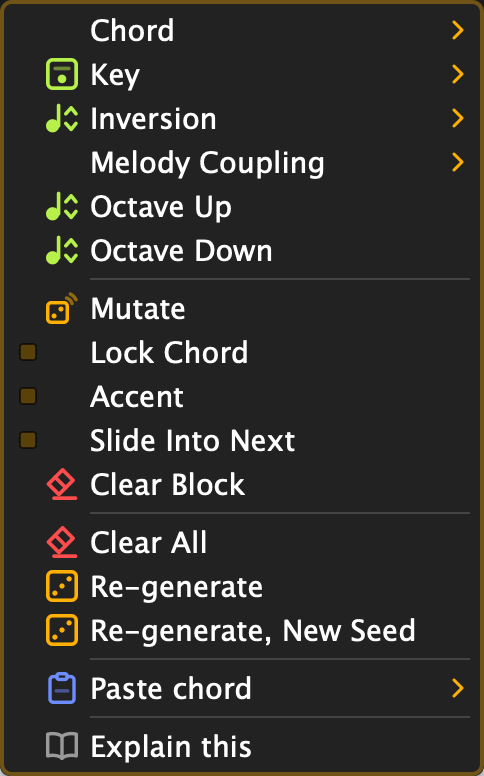
Found a chord you want to keep? Lock Chord in the block's context menu pins it: every later generate keeps the locked block as it is, writes fresh chords around it, and voice-leads into and out of it. Mutate, in the same menu, re-rolls just that one block through the generator. It respects the dials and voice-leads from the block before it.
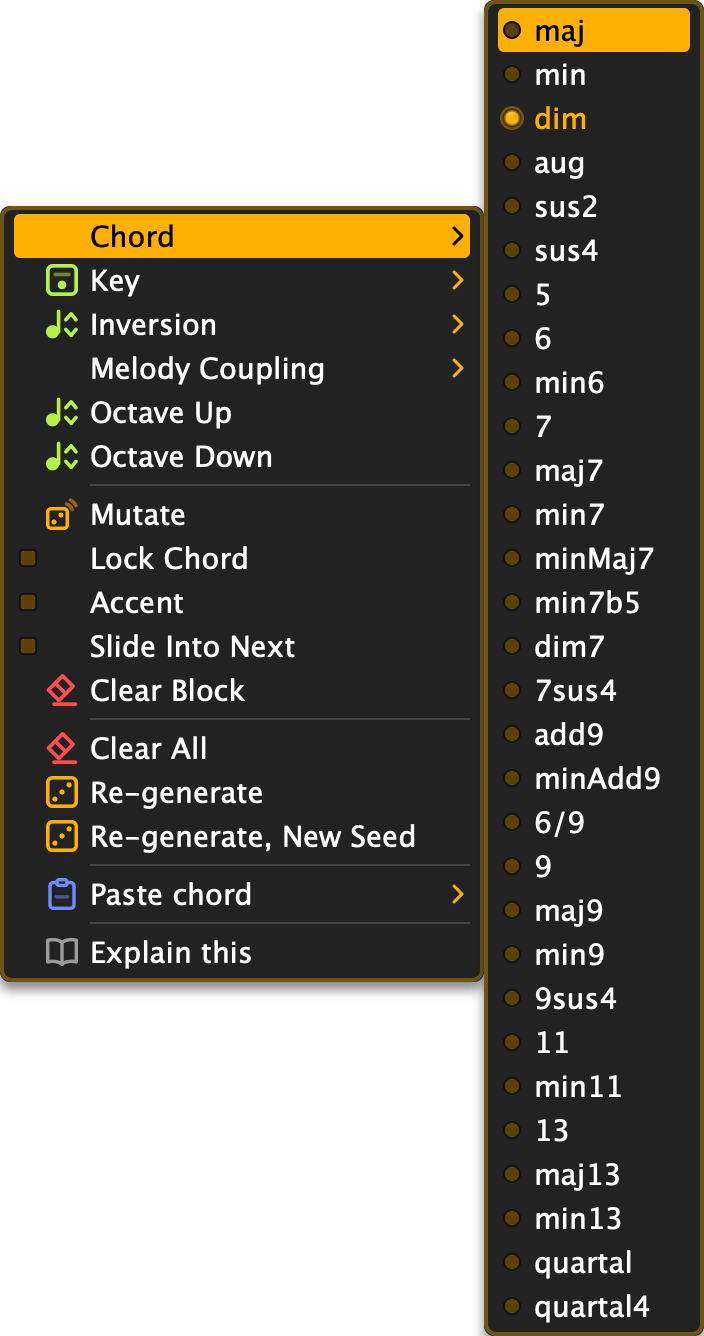
Chord Deviation Lanes
Six lanes reshape the sounding chords per step, with the usual six parameters each:
| Lane | Effect |
|---|---|
| bright | Voicing brightens |
| add7 | Adds the seventh |
| drop5 | Drops the fifth |
| invert | Inverts the chord |
| octave | Shifts the chord an octave |
| retrig | Restrikes the chord |
The Chord Sets the Scale
The chord sequencer can decide which notes the melody is allowed to play. This section explains what that means, when it happens, how to steer it per chord, and how to read the arrows that show it working. No music theory is assumed.
Chord tones, scales and snapping
A chord is a few notes that sound good together; an A minor chord is A, C and E, and those three are its chord tones. A scale is a longer list of notes that belong together (C Major is the seven white keys), and every note not on the list is an outsider. When Bacara holds a melody to a scale, each note the phrase wants to play is checked against the list: a note on the list plays as written, a note off the list is moved to the nearest one that is on it. This manual calls that snapping, and the Scales and Keys chapter is where the list is normally chosen.
Chord coupling is the same mechanism with a different list. Instead of the scale you picked in the bottom toolbar, the list is written by whichever chord is sounding right now, and it is rewritten every time the chord changes. The melody does not know or care where the list came from; it snaps to whatever is in force at that step.
When the chord rules, and when it lets go
The chord rules only while one of its blocks is sounding. At every chord attack the chord sequencer writes a fresh list from the chord's tones; on a rest, when playback stops, or when the chord sequencer is muted, it lets go and the melody returns to its own scale. If you want the rule without hearing the chords (the harmony steering a lead while a different instrument plays the pad), set the chord's target to none rather than muting it: none keeps ruling and sends nothing, mute lets go.
Your own scale is not thrown away while the chord rules. It is parked and comes back the moment the chord lets go. The Scale picker in the bottom toolbar shows which scale is in force: while a chord list is in force it reads Custom in the chord's violet, and under the strict modes it greys out because the picked scale plays no part just then.
Melodic Scale Source: the global switch
The Chord menu in the top toolbar has Melodic Scale Source, the setting that decides for the whole pattern:
- Local: no coupling. The melody uses its own scale and key, and the chord sequencer is just another instrument.
- Chord: strict. The list is the chord tones and nothing else. Over an A minor chord the melody may play A, C and E; every other note moves to the nearest of those three (a note exactly halfway goes up). The melody turns into an arpeggio of the chord: harmonically safe, and the smallest set of notes it will ever get.
- Chord Loose: the list is the chord tones plus every note of your own scale. Notes on your scale stay where they are; only the outsiders are pulled, and they are pulled to a chord tone. Over A minor with your scale on A Minor, an F# moves to E while an F, a D or a G stays put. The melody keeps its passing notes and the chord bends its outsiders.
A new instance starts on Chord. A project or preset saved before this setting existed opens on Local, the way it sounded then. A muted chord part governs nothing, so on a new instance the melody keeps its own scale until you unmute the chords.
A trap: Chord Loose with the melodic scale on Chromatic does nothing. Chromatic is all twelve notes, so nothing is an outsider, so nothing moves and no arrows appear. The coupling is on and has no work to do. Pick Chord instead, or give the melody a scale with gaps in it: Minor, Major, a pentatonic, and Chord Loose comes alive.
Melody Coupling: steering it per chord
Every chord block can overrule the global setting for its own duration. The block's context menu has a Melody Coupling submenu, and the block shows its choice as a faint word in its bottom-right corner: follow, strict, loose, hold, local, root or auto. The choice you pick last also becomes the default for the blocks the chord generator writes next, so a progression can be rolled with the coupling you want already in place.
- Follow Scale Source: the default. The block does whatever the global switch says.
- Strict (Chord Tones): strict for this block, even when the global switch is Local. For the one chord the melody must nail.
- Loose (Chord + Scale): loose for this block, same override rule.
- Hold Previous: keep whatever list the previous block left behind. The melody stays one chord behind the harmony: a suspension, tension that resolves when the next non-Hold block arrives. A rest ends the hold.
- Local (Uncoupled): the chord plays but rules nothing during this block; the melody's own scale is back until the next block.
- Transpose Only (Root): no list at all. Instead the whole melody shifts by the distance from the progression's key to this block's root, the short way round (never more than six semitones either way), and shifts back at the next block. The phrase keeps its exact shape and moves with the harmony, the way a bassist plays the same riff from the new root. Notes that were off-scale stay off-scale; nothing is snapped.
- Auto (Progression Scale): loose, but against the progression's own scale and key (the pair the chord view's pickers show, the one the progression was written in) instead of the melodic scale. You need not match the melodic scale to the chords by hand: the chord sequencer already knows which scale it wrote them in, and the Chromatic trap above cannot happen here.
Strict, Loose and Auto write a list; Local and Transpose Only write none; Hold touches nothing. Mixing them across one progression is the point: a strict block where the melody has to land, loose blocks in between so the line can wander, a Hold before a cadence so the melody arrives a beat late.
The arrows
The melodic view shows the snapping in two places, whichever list is doing it:
- In the gutter, left of the grid, each note row that would be redirected carries a small arrow pointing up or down to the row its notes go to. That is the list, drawn: rows without an arrow are on the list, rows with one are not.
- In the grid, a step whose note was moved shows a faint arrow on the row the note was written on, pointing towards where it sounds; the note itself is drawn on the row it plays.
The colour tells you who is deciding. While a chord list rules, the arrows wear the chord's violet (the same pink-purple the chord sequencer wears everywhere); while your own scale is snapping they are a quiet grey. Violet arrows mean the chord is shaping the melody at this moment; watch them change as the blocks pass.
No arrows when you expected some? One of these is true:
| Symptom | Reason |
|---|---|
| No arrows, chord muted | Mute lets go; use target none to keep the rule |
| No arrows, nothing sounding | Only a sounding block rules |
| No arrows, scale reads Custom in violet | Chord Loose over Chromatic: nothing to move |
| No arrows on one block only | That block is on Local or Transpose Only |
| Grey arrows, not violet | Your own scale is snapping; the chord is not |
| Phrase moves as a whole, no arrows | Transpose Only: a shift, not a snap |
Try this: Chord view, sketch i, iv, V, i on the wheel. Melodic view, scale Minor, Melodic Scale Source Chord Loose, and watch the violet arrows move every time the chord changes. Now set the V block to Strict and the block before it to Hold Previous. The melody hangs back one chord, then lands on the dominant with nothing but chord tones. That is a cadence.
Sidetrack.In a jazz combo the pianist's chord and the soloist's line are held together by this negotiation. The chord tones are safe, the scale tones are passing, and the outsiders are either a mistake or the whole point. Strict, Loose and Local are those three attitudes as a setting.
The Rhythm Sequencer
Underneath the melody, Bacara runs a full drum sequencer: 21 voices, each with its own note, routing, and four generative lanes. Switch to it with the sequencer chip or ⌘+R / Ctrl+R. The rhythm sequencer keeps playing while you are looking at the other views.
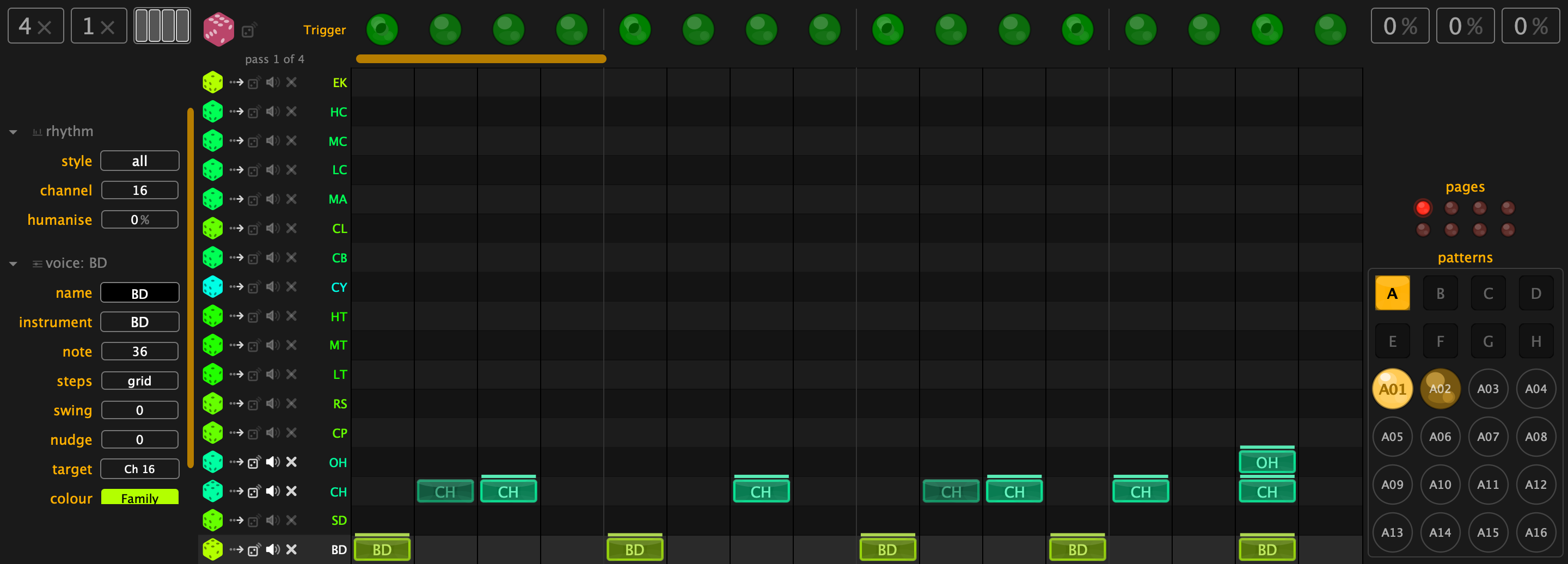
Voices
Each voice has an instrument code from a palette of 17 (BD, SD, CH, OH, CP, RS, LT, MT, HT, CY, CB, CL, MA, LC, MC, HC, EK) or None: four spare lanes named AUX1-AUX4 ship with no instrument at all (hidden until you need them). Per voice, the left panel offers:
- name: call it what you like
- instrument: the code, which also tells the rhythm generator what role the voice plays
- note: the MIDI note it sends (0-127). Moving it plays the note once, so you hear which drum it hits. A note set here stays when you switch maps
- steps: the voice's own length (1-128), or grid to follow the sequencer
- target: where it goes (see Output Routing)
- velocity: a two-ended slider: normal and accent velocity (1-127)
Voices can be hidden, muted and reordered. The Rhythm menu offers Hide All Empty, Hide All Untrained, Hide All Unused, and Show All to bring every row back.
Per-Step Aspects
Every voice carries four aspects per step, and each aspect is a full generative deviation lane of its own:
| Aspect | Effect |
|---|---|
| trigger | The note plays |
| accent | The step plays at the voice's accent velocity instead of normal |
| ratchet | The step rolls: retriggers within its duration |
| humanise | Velocity jitter and timing jitter, per step, for a looser feel |
Each aspect gets the same six deviation parameters as the melodic lanes (passes, repeats, impact, threshold, pulses, rotate), so a hi-hat pattern can evolve across passes like the melody does.
Micro timing
Micro timing is the fifth per-step fact, and it has no lane: it is one step's own fixed placement, set from that step's context menu. It plays after the swing and before the humanise jitter, and it travels with the step through copy, paste, shift and freeze. A step that carries one draws a small bar from the centre of its block towards where the hit lands.
The menu reads in milliseconds ("8 ms late", "3.9 ms early") at the tempo and step length you are playing at, with the step fraction beside it as a second reading. Four offsets each way cover the usual reach, from a quarter of a step down to a thirty-second; More... opens the full ladder, from half a step out to 1/96th. Underneath, the offset is stored in 384ths of a step, Elektron's own unit; the range is half a step each way.
Where swing is a rule that moves every off-beat step the same way, micro timing is written down per hit: a snare that always drags, a hat that leans in front of the kick. The Algorithmic generator writes it: a style's measured feel lands in the steps rather than in the swing knob, which is left straight for you to turn on top. The voice context menu's Micro timing submenu folds the two together in either direction: Freeze swing into micro bakes the sequencer swing and every voice's own swing and nudge into the steps and leaves all three neutral, Thaw micro back to swing fits them back out, and Straighten this voice clears one voice's offsets.
Setups, Maps and Training
- Maps (Rhythm menu): General MIDI, Chromatic, TR-808, TR-909, TR-606, Analog Rytm. One pick arranges the voices and instrument codes for that machine and gives every voice the note it plays there. Hits and deviation move with their instrument. A note you set by hand stays when you switch maps; picking the voice's instrument again hands it back to the map.
- Rhythm training (bottom toolbar): Legacy, 909, 808, 606, or All (the trainset the rhythm dice draws from when its Source is Trained)
- Rhythm style (bottom toolbar): with the Source on Algorithmic (style) the dice follows one of twenty-four written-down genres instead, each with its own arrangement to draw a section from: see The Algorithmic Generator and the Style Catalogue
- Clear all Triggers (Rhythm menu) starts you from silence
The rhythm sequencer has its own speed and swing, independent of the melodic line, and its own Play/Mute switch.
Sidetrack.The trainsets are named for the Roland boxes that raised everyone: the 606's polite tick, the 808's boom that long outlived its maker's expectations, the 909's kick that built techno.
Scales and Keys
Bacara can hold generated and played notes to a scale, so experiments stay listenable.
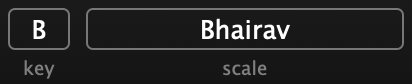
Scale Mode
38 scales, from the ones everybody knows to a few you will meet for the first time here:
Chromatic, 8-Tone Spanish, Bhairav, Dorian #4, Dorian Mode, Half-Whole Diminished, Hirajoshi, Insen, Iwato, Kumoi, Locrian Mode, Locrian Super, Lydian Augmented, Lydian Dominant, Lydian Mode, Major Harmonic, Major Pentatonic, Major, Messiaen 3, Messiaen 4, Messiaen 5, Messiaen 6, Messiaen 7, Minor Blues, Minor Harmonic, Minor Hungarian, Minor Melodic Down, Minor Melodic Up, Minor Pentatonic, Minor, Mixolydian Mode, Pelog Selisir, Pelog Tembung, Phrygian Dominant, Phrygian Mode, Whole Tone, Whole-Half Diminished, Custom / External Chords
Scale Key
The scale's root: C through B. With the chord view shown, the Scale and Key pickers address the chord sequencer's own scale and key instead of the melodic pair; a chord style pick presets that chord scale and never touches the melodic one.
Root Key and Transpose
- Root Key (C through B, or None): the base key of the phrase
- Transpose (-24 to +36 semitones): shifts the whole phrase
Custom / External Chords
With the scale set to Custom / External Chords, the notes you hold on the MIDI input become the scale: hold a chord and press the sustain pedal to capture it. Press sustain with nothing held to reset to Chromatic.
Try this: while the phrase runs, capture a different chord every eight bars. The sequencer keeps playing; the ground moves under it.
Or Let the Chords Decide
The chord sequencer can enforce the scale as its progression plays. See The Chord Sets the Scale.
Deviation Lanes
"I am interested in perceptible processes. I want to be able to hear the process happening throughout the sounding music." (Steve Reich, Music as a Gradual Process)
Deviation lanes are what makes a phrase change from pass to pass. Each lane holds a curve of deterministic random values (rolled once from a seed, then fixed) and a threshold that decides which of them bite, with an optional Euclidean pulse rhythm layered on top. Each lane works on one aspect of the output, and because the curve can stretch across many passes of the loop, the phrase drifts and comes back.
Randomness on its own is cheap; any instrument can misbehave. A deviation is rolled once from the lane's seed and then repeats on every pass: the same seed gives the same pattern.
There are 11 melodic deviation lanes. In default display order:
| Lane | Effect |
|---|---|
| Phrase | Chooses phrase A or B per step |
| Mute | Silences steps |
| Device | Routes steps to device A or B |
| Accent | Plays steps at accent velocity |
| Slide | Glides into the next note |
| Ratchet | Retriggers steps |
| Length | Varies gate time per step |
| Octave | Shifts steps by octaves |
| Key | Shifts steps within the scale |
| Velocity | Varies velocity per step |
| Entropy | Lets steps wander in pitch |
Lanes can be reordered by dragging and hidden from their context menu, so the ones you play live on top. The rhythm and chord sequencers have their own lane sets (rhythm aspects, chord lanes) that work identically.

The Six Parameters
Six controls, and they are the same six everywhere: melodic, rhythm, chord, automation. Learn them on a hi-hat and you have learnt them on a chord progression.
- passes (1-16, default 4): how many passes of the loop the deviation spans before it repeats. More passes, longer evolution
- repeats (1-16): how many times each pass plays before advancing
- impact (0-15): a row of blocks marking which quarters of the phrase evolve across the passes; outside them the lane is pinned to its first pass, shown dimmed
- threshold (0-100; -100 to +100 on Octave and Key): the level at which the deviation bites. On Octave and Key the sign sets the direction: positive pushes steps outwards, negative reins the lane's shifts back in. On Entropy it sets how far a step may wander from its written pitch, up to an octave either way at 100, snapped to the scale; seeded and paged like every other lane, dice it for a new spread
- pulses (0-100): how many active pulses the Euclidean rhythm distributes
- rotate (-100 to +100): rotates the rhythm, moving which steps are hit
What Decides a Deviation
For the technically minded, this is the order in which Bacara works out a step:
- The step itself comes first: its hand-set or generated value, the dot in the LED, is the starting point.
- Impact decides whether this quarter of the phrase gets to evolve; outside the active blocks the lane stays on its first pass.
- Passes and repeats pick which pass of the lane's value curve applies right now.
- Rotate shifts the curve and the steps it lands on.
- Threshold does the deviating: every curve position holds a fixed value from 1 to 100, and wherever the threshold reaches that value, the step flips. A higher threshold reaches more values, so more steps flip.
- Pulses has the last word: a Euclidean rhythm, spread as evenly as the step count allows, that flips the result once more wherever it lands.
The values in the curve are rolled once from the lane's seed and are identical on every pass. Regenerate the lane to roll a new curve, or draw one by hand in the lane's bar editor, where the dashed line is the threshold.
How Euclidean Rhythms Work
Bacara distributes the pulses as evenly as possible across the steps (the Bresenham algorithm, the same maths as drawing a straight line on a pixel grid). Vary pulses, rotation and passes and you get rhythmic figures that circle back without ever feeling stuck.
Sidetrack.In 2004 the computer scientist Godfried Toussaint noticed that spreading pulses evenly across a loop (the same arithmetic as Euclid's 2,300-year-old greatest-common-divisor algorithm) reproduces an unreasonable number of the world's rhythms. Three pulses in eight steps is the Cuban tresillo. Five in eight is the cinquillo. Five in sixteen is the bossa nova. Bacara computes them with Bresenham's line algorithm, invented in 1962 to draw straight lines on plotters; drawing a line and playing a clave turn out to be the same mathematics.

Editing Deviations
- An LED's colour shows the lane's outcome on that step; the small dot marks the step's own hand-set or generated value, the starting point the machinery above works on. With threshold and pulses at zero, colour and dot agree exactly
- Click an LED to change that step value by hand (on/off for most lanes; Octave and Key cycle through their shift amounts; on Entropy the LED shows the step's current wander in semitones); drag to paint the same value across steps
- A lane's context menu can regenerate it (a fresh roll of its curve), hide it, or Paste lane, replacing its curve and settings with any lane from a copied preset, from any of its pattern slots
- Deviations are always the length of the note grid: one LED per step, in step with what they deviate
Automation Lanes
Beyond the note-shaping lanes, Bacara has 32 automation lanes that send MIDI control data: filter sweeps, program changes, whatever your synth listens for. ⌘+A / Ctrl+A shows and hides the automation view.
Each lane sends one message type:
| Type | Description |
|---|---|
| None | Lane disabled |
| CC | 7-bit Control Change (0-127) |
| CC high-res | 14-bit Control Change (0-16383) |
| NRPN | Non-Registered Parameter Number |
| Program Change | Program Change (0-127) |
| Aftertouch | Channel pressure |
| Pitchbend | Pitch bend |
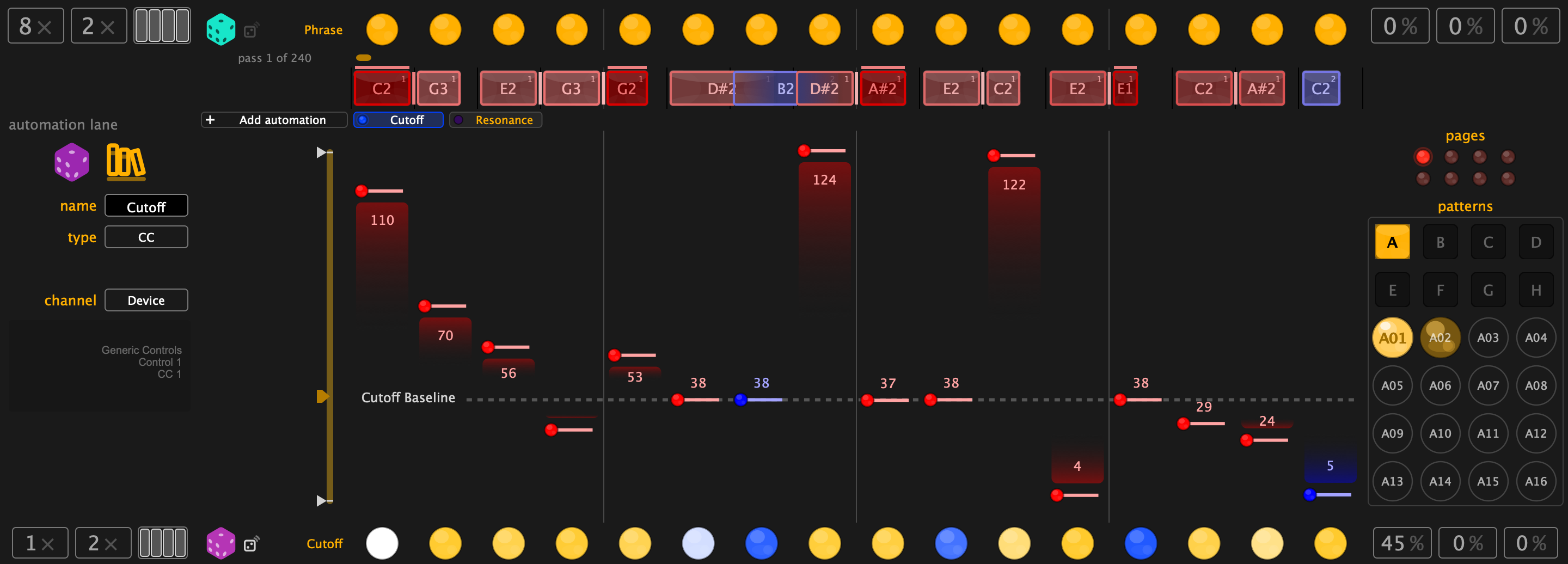
Picking a Lane
Every automation lane belongs to one sequencer, and the lanes a sequencer owns sit as chips in a strip above the curve. Click a chip to bring that lane up; the + at the end of the strip hands the sequencer a free lane and shows it, and a chip's context menu disconnects that lane again and returns it to the pool. Switch sequencer (to a rhythm voice, say) and the strip shows that sequencer's lanes instead. With 32 lanes in the pool, the strip also tells you when there are none left: the + goes dim.
The panel on the left sets up whatever lane the strip is showing: its name, what it sends, and where.
How a Lane Behaves
- Each lane draws a value curve over the steps, plus a baseline: the value the lane rests at when its deviation gate is closed
- The same six deviation parameters (passes, repeats, impact, threshold, pulses, rotate) gate when values are sent, so automation can be as rhythmic as the notes
- Every automation lane belongs to a sequencer (melodic, rhythm or chord) and follows it: it runs at that sequencer's length and speed, and muting the sequencer takes its automation quiet with it
MIDI Device Database
Bacara ships a database of 60+ manufacturers and 170+ devices with their MIDI parameter definitions. Setting up a lane, you browse to your synth and pick the parameter by name. The CC or NRPN numbers are its problem, not yours.
The automation band's context menu offers Paste lane: copy a preset, then paste any of its automation lanes (setup, values and gate curve) onto the lane you're looking at.
Macros
Sixteen macro knobs, each a bipolar control from -1.0 to +1.0 and labelled with the name of the parameter it drives. Show the panel with ⌘+M / Ctrl+M; resize it by dragging its lower edge.
At centre a macro leaves its target alone; turn right and the parameter moves from its own setting towards its maximum, turn left and it moves towards its minimum. When the target already sits at an extreme, the knob folds: at maximum both directions bring the value down, at minimum both directions bring it up. Either way the knob then measures how far to move off the edge, so a macro on a fully-open threshold is never a dead knob.

What Macros Do
A macro drives a deviation parameter, and out of the box the sixteen are already wired to the controls you'll reach for first: the eight main melodic lane thresholds (Pattern first), the trigger thresholds of rhythm voices 1-4, and the first four chord lanes. One knob moves all of them.
To rewire one, drag the macro knob onto any eligible control. Multiple macros can drive the same parameter; their contributions average out, so two knobs hard against each other cancel.
Macros are the handle for everything outside Bacara too:
- DAW automation: all 16 macros are plugin parameters, automatable from your DAW
- Hardware control: see MIDI remote control
- Live performance: one knob per hand
Macro Settings
- Macros are per Preset/Pattern or Global (Settings): shared across everything, or stored with each preset
- Per-preset ranges: each preset can bound how far a macro reaches
- Clear target: a macro knob's context menu un-assigns it: the knob keeps its value and range but drives nothing (it reads "-" and greys out; outside edit mode it leaves the strip), until you drag it onto a control again or paste a macro over it
- Paste macro: the same menu pastes a macro (value, range and assignment) out of a copied preset
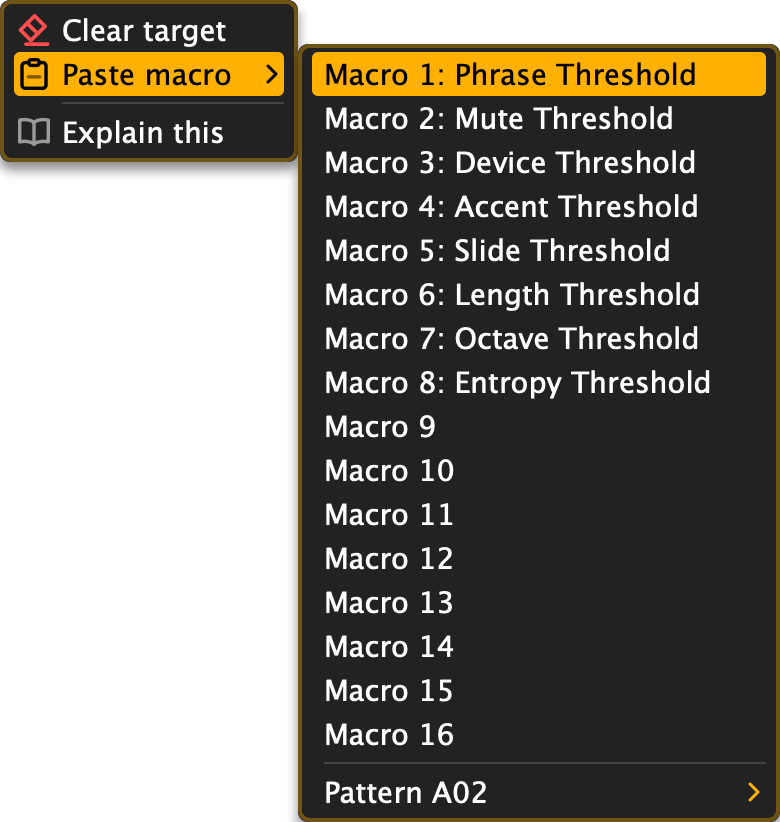
Try this: assign two macros to the same threshold and ride them against each other: one slow hand, one twitchy.
Patterns and Banks
Each preset holds 128 pattern slots: eight banks, A through H, of sixteen patterns each, addressed the way an Elektron box addresses them: A01 to H16. Each pattern slot holds all of Bacara's settings: phrases, deviation and automation lanes, note parameters, macros, routing, all of it. Switching swaps everything you have now for the stored pattern; the only things that stay put are per-machine matters like MIDI ports, tempo sync and which panels you have open. Empty slots cost nothing: a preset only carries the patterns you filled.
That completeness cuts both ways. The wiring to your synths (device targets, rhythm voice routing, the chord target) belongs to each pattern individually, never to the preset as a whole. Re-aiming a bank of patterns at a new synth is per pattern; the pattern context menu's copy commands do most of it. The same independence lets A01 drive one instrument and B01 a different studio.
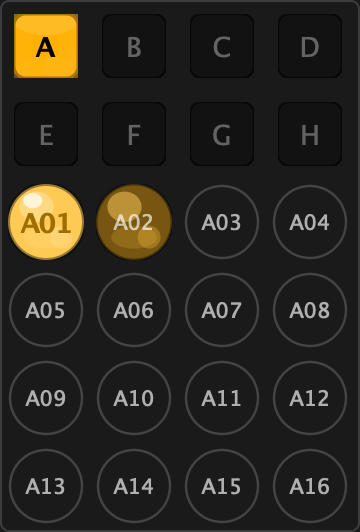
Using Patterns
- The top rows are the banks: eight tiles, A to H. Click one to show its sixteen patterns below. The shown bank is lit; a bank that holds patterns has a brighter letter than an empty one; the bank of the sounding pattern wears a thin rim
- Click a pattern marble to switch. While playing, the switch waits for the next pass (the deviation cycle boundary), so the music never stumbles. The queued marble pulses until the switch lands. Queue a pattern in another bank and that bank's tile blinks too, so you can see where the switch is going without opening the bank
- Each pattern remembers its own phrases, deviation settings and lanes
- Patterns can also be selected from MIDI: a Program Change picks the slot outright (0 = A01 ... 127 = H16, what an Elektron sends when its own pattern changes), and notes C0-D#1 pick pattern 1-16 of the current bank; only patterns with content respond
- Patterns are automatable from your DAW: Pattern is a plugin parameter listing all 128 slots by name, so an automation lane reads
D04rather than a bare number. It obeys the same next-pass timing as clicking a marble, so an automated switch lands musically too - A pattern marble's context menu can copy, move or clear patterns (to any slot in any bank), and Paste from pastes a pattern out of a copied preset, including one copied in another Bacara
- The bottom toolbar's Pattern list does the same by name, one submenu per bank
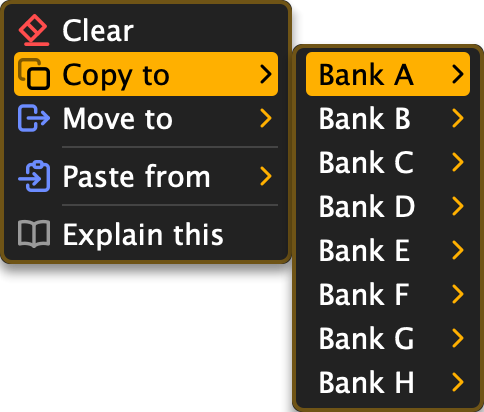
Try this: build A01 through A16 as one long crescendo, each pattern slightly busier than the last, then perform the bank.
Presets and Phrases
Presets
A preset is all of Bacara's settings: all parameters, all lanes, every filled pattern slot. Files use the .bcr extension, and double-clicking one opens it in Bacara.

- Factory presets: 48+ starting points, installed read-only
- User presets: yours, saved from the top toolbar
- Undo/Redo: 32 levels
Copy Once, Paste Anything
Copy (⌘+C / Ctrl+C) puts the whole preset on the clipboard, and one copy carries everything. Paste (menu > Edit > Paste) offers the whole preset, the current pattern slot, the target phrase, or any single piece: a rhythm voice, melodic phrase A or B, the chord pattern, an automation or deviation lane, a macro, or a whole pattern slot, sourced from any of the copied preset's slots.
The same options appear in each surface's context menu (a rhythm voice's gutter, a deviation lane, a pattern marble, a macro knob) where the thing you clicked is the paste target. It works between Bacaras, and every paste is a single undo step.
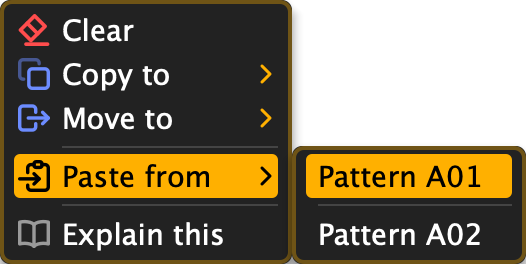
File Locations
| What | macOS | Windows |
|---|---|---|
| Factory presets | /Library/Audio/Presets/Bonboa/Bacara/Factory/ |
C:\ProgramData\Bonboa\Bacara\Presets\Factory\ |
| User presets | /Library/Audio/Presets/Bonboa/Bacara/User/ |
C:\ProgramData\Bonboa\Bacara\Presets\User\ |
| Phrase history | /Library/Audio/Presets/Bonboa/Bacara/Patterns/ |
C:\ProgramData\Bonboa\Bacara\Patterns\ |
Phrases
Phrases are the raw melodic sequences the dice produces, stored automatically with a timestamped name.

- History: browse everything you've generated
- Favourites: heart the ones to keep (⌘+F / Ctrl+F)
- Cleanup: menu > Pattern > Cleanup... removes every non-favourite, after asking
Clips
Everything you hear can leave as MIDI clips: the melodic line, each rhythm voice and the chord sequencer, rendered the way Bacara plays them.

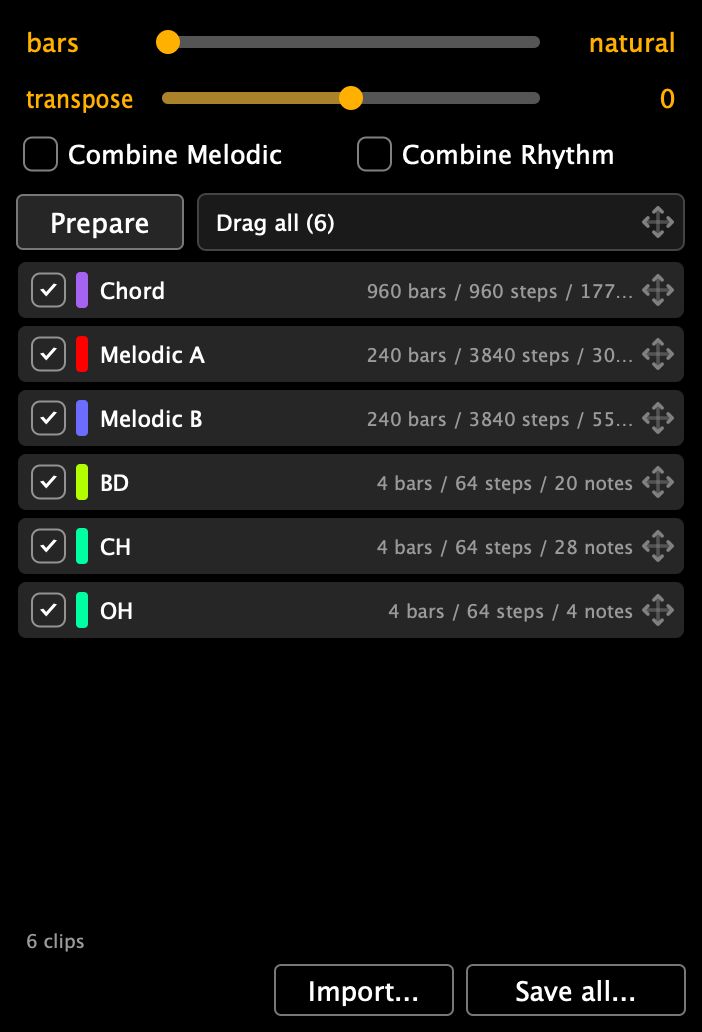
The panel prepares the clips when you press Prepare, not while you work. Edit, generate, switch pattern or change an option afterwards and the rows dim and stop dragging until you press Prepare again, so a clip you drag is always the music you hear. While it works the button reads Cancel.
The panel lists one row per clip, in the order a DAW gets them: Chord, then Melodic A and Melodic B (or one Melodic row with Combine Melodic on), then one row per sounding rhythm voice (or one Rhythm row with Combine Rhythm on). Each row is a drag: take it by its handle and drop it on a track or a clip slot in your DAW, then come back for the next one. Drag all hands every ticked row to one drag, which most DAWs spread over consecutive tracks; Save all... writes the same set into a folder of your choosing.
The clip holds what you heard: deviations unrolled pass by pass, trig conditions rolled with the phrase's own seed, the scale a chord enforces followed step by step, swing baked in, humanize baked in, automation lanes included (each lane in the clip of the sequencer that owns it), and each clip at its own sequencer's speed, so a 1/8 rhythm lands as eighths next to a 1/16 melody. A chord frozen into a rhythm voice arrives stacked.
- bars sets the length of every clip; natural (the slider's left end) gives each clip its own loop: the unique extent of its deviations, which can differ per clip when the rhythm is polymetric. Bacara's loops keep changing, so a natural loop can outlast a clip: a clip holds up to 4096 bars, or 16384 steps if that comes first, and the status line says when a loop was shortened.
- transpose moves the melodic and chord clips in semitones; drums are instruments, not pitches, and stay put.
- Untick a row to leave it out of Drag all and Save all.
Importing a MIDI clip
Import works too: drop a .mid file on the window, or press Import... in the Clips panel, and the clip becomes a phrase Bacara keeps varying. A melodic line lands in the melodic sequencer as the phrase itself, not as a frozen voice, so deviation, macros, trig conditions and the next roll all act on it: one note per step (the lowest wins when two share a step), a note held into the next step becomes a slide, a note at or above the accent velocity becomes an accent, an onset off the grid keeps its place as micro timing (to within 1/384 of a step), and the length rounds up to a whole bar. A drum track lands as rhythm voices, one per drum (36 is the kick, 38 the snare, 42 the closed hat, and so on; a drum the table does not know gets a spare lane named after its note), two hits in a step as a ratchet. A track that is mostly chords lands in the chord sequencer as chords: the lowest note is the root, the others its intervals, the longest note the length.
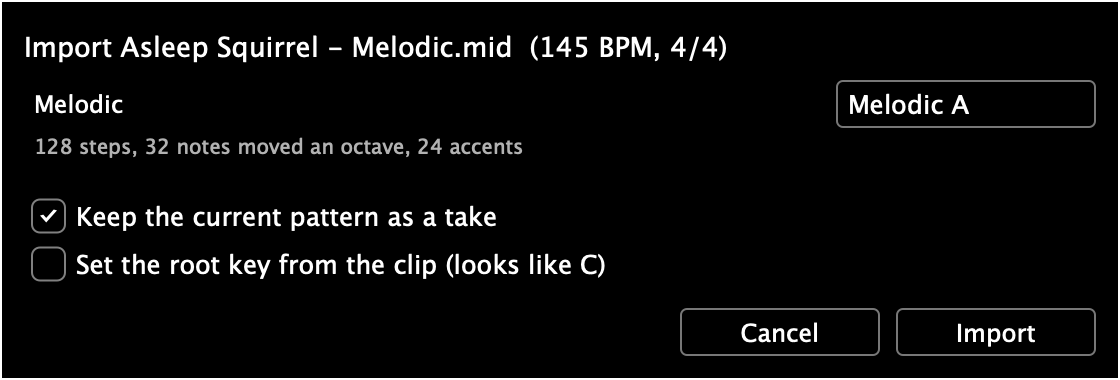
The dialog shows one row per track with the target Bacara suggests (Melodic A or B, Rhythm, Chord, or Skip) and what the landing will do to it (how many steps, how many notes were moved an octave into range or flattened, how many accents), so nothing is reduced silently. Keep the current pattern as a take copies what is playing now into the first free pattern slot before the import replaces it, so the way back is the pattern shelf; the whole import is also one undo step. Set the root key from the clip is an offer, off by default: it reads the key most of the imported notes sit on and makes it the melodic root key, leaving the scale as it is. A rhythm import replaces the rhythm phrase the way a melodic import replaces the melodic one: voices the file does not carry are emptied, and the take holds the old beat.
Clips are plain Standard MIDI Files with the tempo and time signature inside, so they land at the right length anywhere.
Output Routing
Bacara splits its melodic output between two destinations, Device A and Device B, two synths from one line. The rhythm and chord sequencers route independently on top of that.
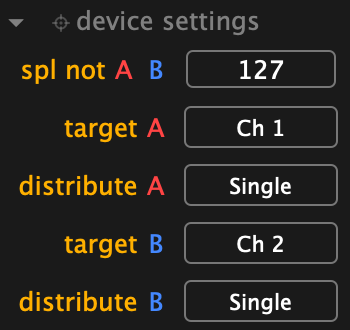
Split Note
The split note slider (0-127, default 127) draws the line: notes at or above it go to Device B, below it to Device A. At the default of 127 everything goes to A.
Targets
Each device has a target button. Behind it is the Direct channel. Direct is the plain-MIDI baseline that always exists: just a channel, 1-16, no ports involved (A defaults to 1, B to 2). The picker also offers None: the device then sends nothing at all, while the rest of Bacara carries on as if it were playing. Direct is what arrives at your DAW.
Distribute
One line, several channels: for multitimbral synths and polyphonic hardware chains, where the notes are better off not queueing behind each other. The distribute button offers:
- Single Channel (default)
- Round Robin over 2-16 channels: cycles in order
- Random Any over 2-16 channels: any channel each note
- Random Other over 2-16 channels: random, but never the same channel twice in a row
- Re-seed Spread: reshuffles the random sequence (random modes only)
Note:slides need consecutive notes on the same channel to glide. With distribution active, slide behaviour depends on where the notes land.
Rhythm and Chord Routing
- The rhythm sequencer sends on its own global channel (1-16, or none), and each voice has its own target button on top of that; with the global at none, only voices given their own channel play
- The chord sequencer has a single target of its own
Feeding several DAW tracks from one Bacara is fiddly in some DAWs and impossible in Logic. For that, put one Bacara on each track and bond them: see Bond.
MIDI Input and Remote Control
The Keyboard
The virtual keyboard at the bottom plays into Bacara like an external MIDI keyboard, useful when the nearest hardware is across the room.

Input Settings
Bacara ignores your playing until you tell it not to. The left panel's i/o settings section (below the device settings, collapsed by default, click the header) holds:
- input channel (1-16): the channel Bacara watches for input notes
- input mode: what incoming notes do:
- Ignore (default): nothing; the phrase is self-sufficient
- Transpose: incoming notes transpose the phrase
- Add Start: incoming notes are prepended to the phrase
- Add End: incoming notes are appended
- output mode: Independent (the phrase always plays, default) or w/ Input (it plays only while you hold notes)
Remote Control by Note
Specific note ranges on the input drive Bacara itself:
| Note range | Function |
|---|---|
| C0 - D#1 | Select pattern 1-16 of the current bank (switches on the next pass; empty slots don't respond) |
| Program Change 0-127 | Select pattern slot A01-H16 outright (the Elektron pattern-change message; VST3 has no Program Change, so there automate the Pattern parameter) |
| C1 - B1 | Set the root key |
| C2 - B6 | Pattern note input: behaves per the input mode above |
| C7 - B7 | Generate a pattern; the note picks the temperature (C7 = 1.0 up to B7 = 5.0, and it sticks) |
| C8 - D#9 | Re-seed deviation lanes, one note per lane: Mute through Entropy, then Automation 1-5 |
| E9 - B9 | Generate automation values for lanes 1-8 |
Sustain pedal: with the Custom / External Chords scale active, sustain captures the held notes as the scale; sustain with nothing held resets it to Chromatic.
Bond
One Bacara plays all three sequencers and sends them out on different MIDI channels. Whether that reaches three instruments on three tracks depends on the DAW. Bitwig takes it in its stride. Ableton Live merges every channel into one when a track takes its MIDI from another track, so the split is gone before it arrives. Logic does not let an AU MIDI effect feed another track at all.
So put a Bacara on each track and bond them. Bonded Bacaras play one shared pattern, and each plays only its part, so the bass track can play the melodic line while the drum track plays the rhythm.
Starting and Joining
Every Bacara has a Bond chip in the top toolbar, with a Director switch to its left (the clapperboard). Click the chip:
- Start bond: starts a new bond, named after this Bacara's track, with this Bacara directing it
- Join bond: lists the bonds that are running, with how many Bacaras each one holds and which hosts they run in

A joining Bacara takes the bond's pattern. If it already has a phrase of its own, Bacara asks before replacing it. An empty Bacara joins straight away.
Bonded, the chip reads Bonded · 5 (five Bacaras in the bond), with a badge in the colour of the sequencer this Bacara plays. Its menu holds Bond name, Cast as and Break bond, plus Direct from here on every Bacara that is not directing. A bond holds up to 16 Bacaras.
Casting
Each member is cast as the sequencer it plays. The Bacara that starts a bond takes the melodic sequencer, and each Bacara that joins takes the first one nobody plays yet, in the order melodic, chord, rhythm.
Cast as changes it at any time. Each sequencer is a tick of its own, so one Bacara can play two of them and two Bacaras can play the same one. None leaves a Bacara silent.
Casting goes down to the channel. When a sequencer sends on more than one channel (the melodic line split between Device A and Device B, or rhythm voices spread over several machines), its entry under Cast as gets a channel list, such as Melodic channels. Untick the channels that belong on another track. The bass track keeps Ch 1, the lead track keeps Ch 2, and one melodic line plays two instruments that record separately.
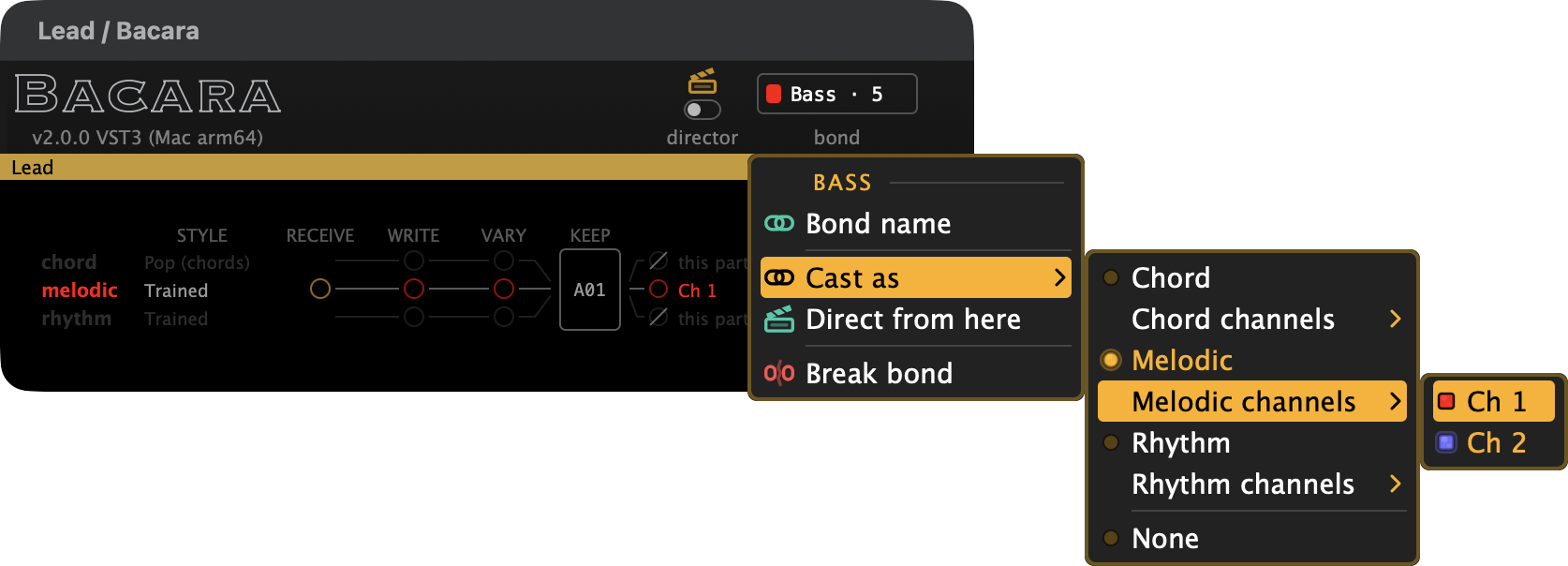
A channel that no member plays stays silent, and so does any automation lane on that channel.
The Director
One member of a bond is the Director, the Bacara you edit on. It shows the full Bacara. The others, the cast, fold their windows down to a small toolbar with the chip and the switch, and below it:
- a band in the track's colour (when the DAW passes it on), with the track name on the left and the directing track on the right
- the Flow, showing what the whole bond is playing, with this Bacara's part brought forward
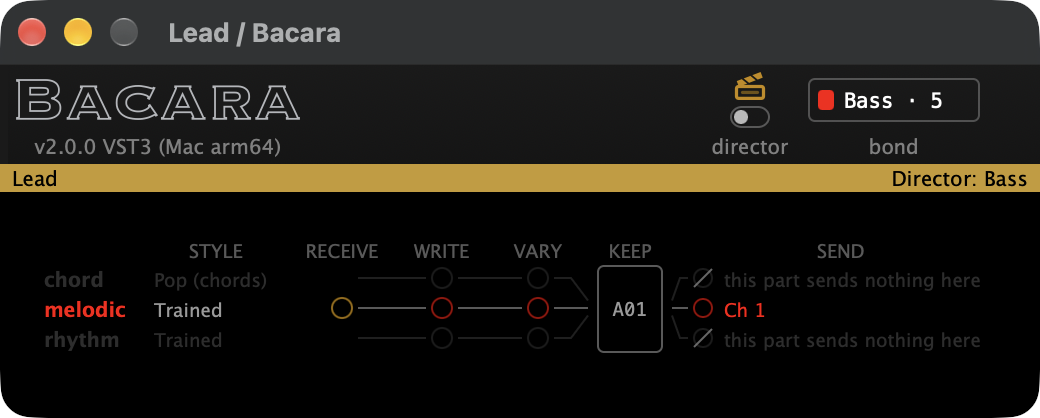
The Director's window wears the same band above the full editor.
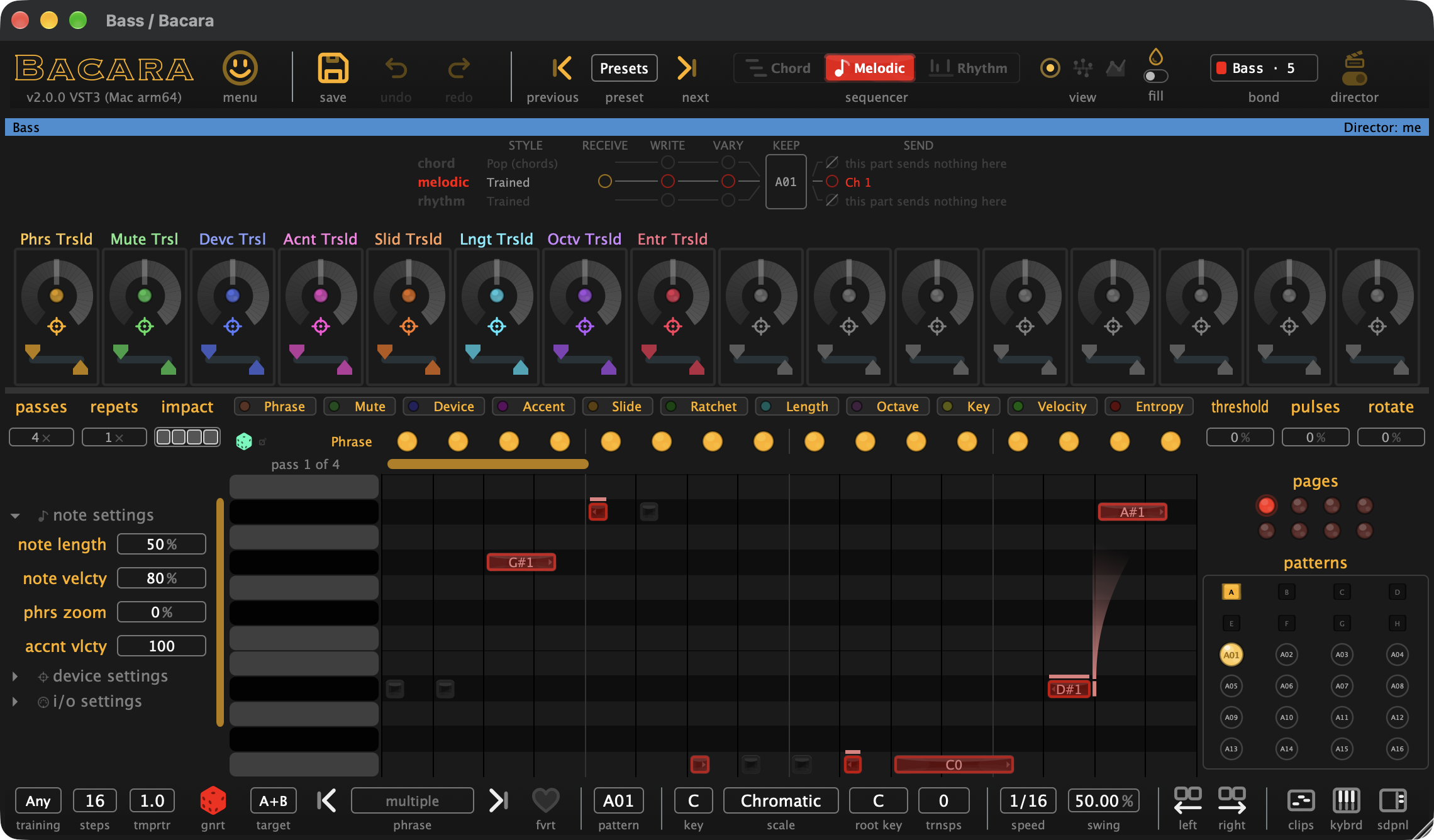
Every cast member runs the complete instrument underneath, which is why they agree to the note. The one thing a cast window changes is its claim: click the SEND column in the Flow for that sequencer's channel list. The music is edited on the Director.
To edit from another track, flip that Bacara's Director switch or choose Direct from here in its chip menu. The windows change places: the new Director opens into the full Bacara and the old one folds down. The switch on the sitting Director stays on and greyed out: to move direction, flip the switch on the track that should have it.
If the directing track is deleted, direction passes to the longest standing member by itself.
Breaking a Bond
Break bond takes that Bacara out of the bond, Director included. It keeps everything it had at that moment and becomes an ordinary Bacara again, full window and all. Every member carries a full copy, so leaving takes nothing from the others.
What a Bond Shares
Everything that decides the notes travels: patterns and phrases, deviation and automation lanes, macros, scale and key, styles, the generator's settings, the bond's name and every automatable parameter. That includes host automation written on any bonded track, so a macro drawn on the drum track moves on the bass track too. A fast automation ramp reaches the other tracks in steps of about a tenth of a second.
Each Bacara keeps for itself:
- Tempo and transport, which the DAW already hands every track
- its casting
- its window size and view
- Undo: it undoes what you did on the Bacara you did it on, which in a bond is nearly always the Director
Playing Into a Bond
A bond listens through its Director. Notes played into a cast member's track are not used, and its Flow says so. Play into the Director's track.
Reopening a Project
Each Bacara saves the bond it belongs to and the part it plays, so the project opens bonded the way you saved it, Director included.
Joining While the Transport Runs
Bacara counts its phrases from where the transport last started, the way an Elektron box does, and song position does not come into it. A Bacara that joins while the transport runs has the right pattern at the wrong place in it. Stop and start, jump, or let a loop come round, and every member lines up again. Bonding during setup avoids it.
Try this: start a bond on a drum track and cast it as rhythm. Put a Bacara on a bass track and join; it takes the melodic sequencer. Now roll the dice on the Director, and the bass line changes in the bass track's synth.
The Bacara App
Bacara Plugin installs an app beside the plugins, named plain Bacara. It is the same sequencer with its own window, and it does three things.
It directs a bond. Put Bacara plugins on your tracks, bond them, and direct the bond from the app: the whole band in one window that is not a plugin window, while every track plays its own part in your DAW.
Press Play in the app and your DAW starts, where the DAW allows it: Bitwig does with the CLAP version. In Live and other VST3 hosts, start the DAW yourself and the app follows.
It plays the demo sound. Switch the demo on and the app plays what it sequences by itself, no DAW needed.
On macOS it has a MIDI port of its own, named Bacara. Your DAW sees it as an input: take it on any instrument track and the app plays that instrument. Send your DAW's MIDI clock to the same port and the app runs in time with it. On Windows the app has no MIDI port and sends no MIDI: there, the plugin in your DAW is the way to sound.
The app has no hardware MIDI ports, no Ableton Link and no plugin hosting.
Help
The Manual Panel
This manual lives inside Bacara too. Open the smiley menu's View submenu and pick Manual, or pick Manual from the dock's panel list. The page opens in the right-hand dock, with a list of its headings down the left: click one to jump there. Each build carries its own edition, so the plugin shows the plugin manual.
The tutorial's bubbles link here. Click Manual: and a section name in a bubble, and the tour pauses while the panel opens at that section. A link that leaves the manual opens in your browser. The context menu on the page offers Open in browser: the same place on bonboa.com.
On Windows the panel shows Open in browser in place of the page, for now.
The Tutorial
The tutorial starts by itself the first time you open Bacara, and you can rerun it any time from the menu (smiley icon > Tutorial).
Support
- Developer: Bonboa
- Website: bonboa.com
- Contact: [email protected]
Keyboard Shortcuts
Presets and Editing
| Shortcut | Action |
|---|---|
| ⌘+C | Copy preset |
| ⌘+V | Paste preset |
| ⌘+Shift+V | Paste current pattern |
| ⌘+Alt+V | Paste target pattern |
| ⌘+N | New pattern |
| ⌘+Shift+N | New preset |
| ⌘+S | Save preset |
| ⌘+X | Delete preset |
| ⌘+Z | Undo |
| ⌘+Shift+Z | Redo |
Phrase and Generation
| Shortcut | Action |
|---|---|
| ⌘+G | Generate phrase |
| ⌘+] | Double the steps |
| ⌘+[ | Halve the steps |
| ⌘+F | Phrase favourite |
| ⌘+T | Phrase target (A / B / A+B) |
Views
| Shortcut | Action |
|---|---|
| ⌘+1 | Chord sequencer |
| ⌘+2 | Melodic sequencer |
| ⌘+3 | Rhythm sequencer |
| ⌘+R | Cycle view (Melodic → Rhythm → Chord) |
| ⌘+E | Editor panels (left and right) |
| ⌘+A | Automation lanes |
| ⌘+D | Deviation lanes |
| ⌘+L | Aspect LED rows |
| ⌘+B | Gutter |
| ⌘+K | Keyboard |
| ⌘+M | Macro panel |
Navigation
| Shortcut | Action |
|---|---|
| ⌘+Left | Previous preset |
| ⌘+Right | Next preset |
| ⌘+Up | Previous phrase |
| ⌘+Down | Next phrase |
| Page Down | Next page of the step grid (grids longer than 16 steps show one page at a time) |
| Page Up | Previous page of the step grid |
| Shift+> | Next pass of the deviation lanes (while stopped) |
| Shift+< | Previous pass of the deviation lanes (while stopped) |
| Arrow keys | Whatever has focus: the step grid's cursor, or the lane and voice chips |
Settings
| Shortcut | Action |
|---|---|
| ⌘+W | Settings |
Troubleshooting
Plugin not appearing in the DAW
- Rescan plugins after installation
- Bacara is a MIDI effect, and some DAWs list those separately from instruments and audio effects
- On macOS, check System Settings > Privacy & Security if Gatekeeper has opinions
No sound
- Bacara outputs MIDI, not audio. Something has to be listening: check that a synth receives Bacara's output
- Check the MIDI channel your synth expects against Bacara's targets
- Check your DAW's transport is running: the plugin follows the host
- If output mode is w/ Input, the phrase only plays while you hold a note
- Check the sequencer's Play/Mute switch: a muted sequencer is very quiet indeed
Phrase sounds wrong, not silent
- A deviation lane may be doing what you asked. Check Mute and Phrase lane thresholds first
- Check the Melodic Scale Source (Chord menu): a chord progression may be ruling the scale
Slides not gliding
Slides need two things. First, a synth that can glide: monophonic, legato mode, some portamento time. See Slide Needs the Right Synth. Second, consecutive notes on the same MIDI channel: if a device uses channel distribution (Round Robin / Random), set it back to Single Channel for reliable slides.
A bonded Bacara will not let me edit
A bond is edited on its Director, and the band above the Flow names the directing track. To edit here, flip this Bacara's Director switch.
A track I just bonded plays in the wrong place
It joined while the transport was running. Stop and start the transport and every member lines up. See Joining While the Transport Runs.
A bonded track ignores the notes I play into it
A bond listens through its Director. Play into the Director's track.
High CPU usage
Bacara is MIDI-only and should barely register. If something looks wrong, try hiding unused panels, and tell me.